
You will learn
How to connect NextTables to a PostgreSQL database by creating a Postgres login role scoped to your schema and then adding a validated, folder-scoped database connection in NextTables. Once connected, business teams can maintain data directly on the platform — validated, authorised, and auditable.
Prerequisites
- The Manage databases authorisation on Site level in NextTables.
- A PostgreSQL database reachable from NextTables. SSL is required.
- A Postgres login role (username + password) with read and write access to the schema NextTables will use.
- The PostgreSQL connection details: instance name (your database name), host, port, schema, username, and password.
- Network access from NextTables to your PostgreSQL endpoint. You may need to allowlist the NextTables IP (find it at the top of the connection sheet in NextTables) in your data platform or network.
Step-by-Step Instructions
1) Create a login role scoped to your schema
- Using a SQL client (for example, psql), create a Postgres role with login and a password, then grant read and write on the schema NextTables will use.
- Keep the role least-privilege — scope it to that one schema rather than the whole database.
- See the PostgreSQL documentation: CREATE ROLE and GRANT.
- Note down the instance name (your database name), host, port, schema, username, and password — you'll need these in NextTables.
💡 Tip: Create a dedicated role per connection (for example, one for HR and one for Finance) and scope each to its schema. This keeps access auditable and makes it easy to rotate credentials later.
2) Open the Databases area in NextTables
- Click your profile avatar in the top-right corner.
- Click Administration.
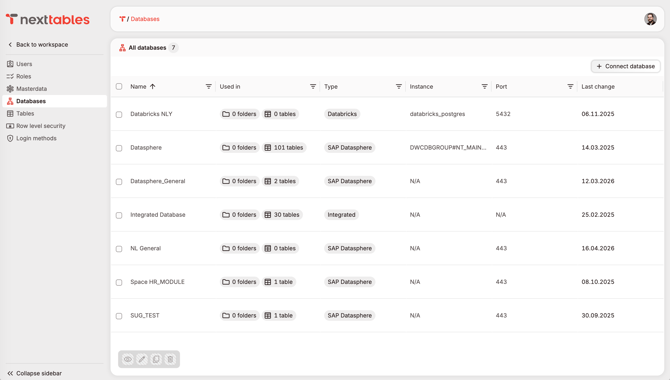
- In the left sidebar, click Databases.
- You'll see your list of connected databases (an empty list if none are connected yet).
3) Start a new database connection
- Click Connect database in the top-right corner of the page.
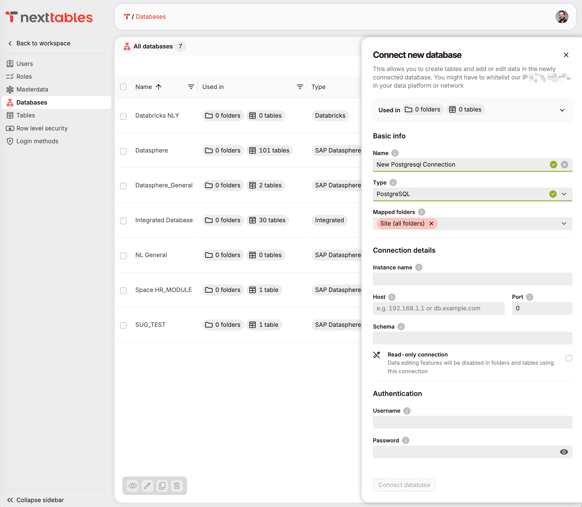
- The Connect new database panel opens on the right. It notes that you may need to allowlist the NextTables IP in your data platform or network.
- Under Basic info, enter a Name for the connection (for example, My PostgreSQL Connection).
- Set Type → PostgreSQL.
4) Set the folder scope (optional)
- Use Mapped folders to control where the connection is available. The default is Site (all folders).
- To restrict it, remove Site (all folders) and select one or more specific folders, so the connection is only available there.
- For details, see Scoping Database Connections to Folders in Additional Resources.
💡 Tip: For sensitive data (for example, HR or finance), scope the connection to a dedicated folder instead of making it available everywhere.
5) Enter the connection details
- Once you select PostgreSQL, the rest of the form unlocks. Under Connection details, enter the values from Step 1:
- Instance name — your PostgreSQL database/instance name
- Host — for example, db.example.com
- Port — for example, 5432
- Schema — the schema your login role can read and write
- (Optional) Leave Read-only connection unchecked to allow data maintenance. If you tick it, data-editing features are disabled in folders and tables that use this connection.
- Under Authentication, enter the Username and Password of the login role from Step 1.
6) Connect and confirm
- Click Connect database.
- NextTables tests the connection internally. If the test succeeds, the connection is added and you are notified of the success.
- From here, you can connect existing tables or create new tables with NextTables in PostgreSQL.
Troubleshooting / FAQs
Q: The connection test fails when I click Connect.
A: Check the most common causes: the NextTables IP (find it at the top of the connection sheet) is not allowlisted in your data platform or network; the instance name, host, port, or schema is incorrect; the login role does not have read/write on the schema; or the password is wrong. Correct the value and click Connect database again.
Q: I don't see the Databases option, or I can't add a connection.
A: You need the Manage databases authorisation on Site level. Ask a site administrator to grant it.
Q: The connection works, but I can't create or edit tables.
A: The login role needs read and write privileges on the target schema. Re-grant read/write to the role and reconnect. If Read-only connection is ticked, untick it to allow data maintenance.