
You will learn
This article shows you how to link a database connection in NextTables to a specific folder, so only applications built under that folder can use the connection and the master data objects that depend on it.
You will create the target folder, connect a new database, and scope the connection to that folder using the Mapped folders picker.
This article is for NextTables admins and data platform owners.
💡 Tip: Pick the right control:
- Use folder scoping (this article) to restrict an entire database connection to a folder.
- Use Roles to restrict who can access a table or folder in general.
- Use Row-Level Security Objects (RLSO) when a connection is shared but you need to restrict which rows different users can see.
Prerequisites
Before you start, make sure you have:
-
The site-level Manage databases permission in NextTables
-
A target folder in your workspace to map the connection to. If you need to create one, you also need the Manage folders permission.
Step-by-Step Instructions
1) Create the target folder
-
In NextTables, open the workspace
-
In the left sidebar, create a new folder (for example, "HR").
2) Open the database connection
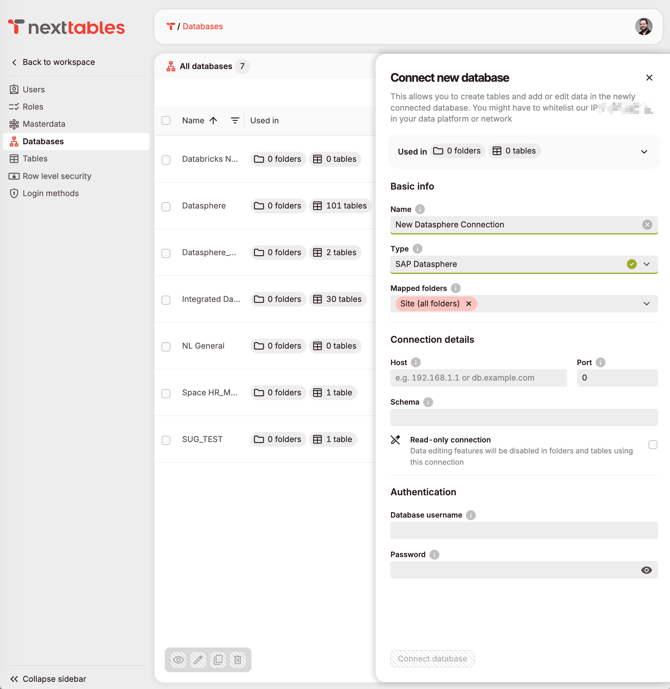
- Go to Administration → Databases
- Open the connection:
- To create a new one, click + Connect database. Choose your platform under Type and fill in the connection details (host, port, schema, username, password)
- To edit an existing one, find it in the list and click the Edit database connection icon.
3) Scope the connection to the folder
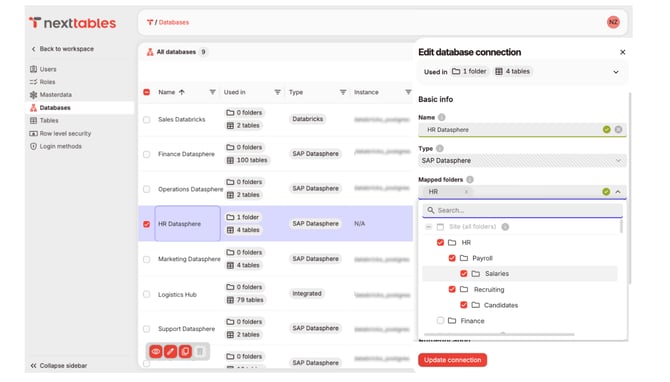
- In the panel that opens, find the Mapped folders field. By default it is set to Site (all folders), which makes the connection visible everywhere. Change this to one or more specific folders for any sensitive data domain.
- Select the target folder (for example, "HR").
- Sub-folders are included automatically. Uncheck any you want to exclude.
4) Save the connection
-
Click Connect database (new) or Update connection (existing) to save.
-
Applications built under the mapped folder can now use the connection. Applications in other folders cannot see it. Master data objects built on this connection inherit the same folder scope.
⚠️ Warning: Changing scope after saving
- Widening the scope (for example, back to Site (all folders)) is allowed for any user with the site-level Manage databases permission. Grant this permission to a small, trusted group of admins only.
- Narrowing the scope (for example, to a sub-folder) is blocked while applications outside the new scope still use the connection. To narrow, first move or remove those applications.
Troubleshooting / FAQs
Q: Can I map one connection to multiple folders?
A: Yes. The Mapped folders picker is multi-select. The connection will be visible in every selected folder and its sub-folders.
Q: Do sub-folders inherit access automatically?
A: Yes. Selecting a parent folder includes all its sub-folders by default. You can uncheck individual sub-folders to exclude them, the parent will then show a partial-selection indicator.