
You will learn
How to edit a form definition directly as JSON, the complete schema of properties NextTables accepts, and what the save keeps, discards, or rejects.
This article is for data platform owners and application builders who are comfortable with JSON and want to configure many fields at once, review a whole form as text, or generate a form definition with a script or an AI assistant.
💡 Tip: The property panel covers everything on a single field faster than JSON does. Reach for the JSON editor when the work spans many fields at once, or when you want the whole form in one reviewable block.
Prerequisites
- A table whose form you can edit, and the steps in How to set up a data entry form for a table.
- The conditions and rules you plan to write, from How to show, hide, and require form fields with conditions and How to validate form entries with validation rules.
1) Open the JSON editor
- Open the table and select Edit form.
- Open the JSON tab.
- The current form definition appears as text.
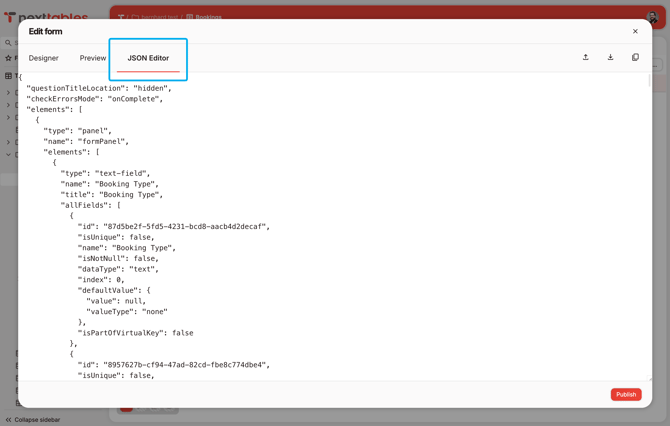
2) Keep a copy before you edit
- Select all of the JSON and save it to a file.
- A definition you paste replaces the whole form, so a copy is the fastest way back.
⚠️ Caution: Keep every name and fieldId exactly as it is. Those two values bind an input to its table field and are referenced by conditions and rules. A form saved with a changed binding loses the connection to the field.
3) Understand the structure
A form definition has three parts: two survey-level settings, and one panel that holds every field.
{ "checkErrorsMode": "onComplete", "questionTitleLocation": "hidden", "elements": [ { "type": "panel", "name": "formPanel", "elements": [ { "type": "text-field", "name": "booking_type", "fieldId": "9f1c2f7e-8b3a-4d5e-9a10-6c2f4b7d8e01", "title": "Booking Type", "isRequired": true } ] } ] } elementsholds exactly one panel namedformPanel. Every field sits inside that panel.- One field object per table field. The set of fields is fixed, so adding or removing an object does not add or remove a field.
- Field order follows the table, so reordering the objects has no effect on the rendered form.
4) Set the field type to match the data type
| Field data type | type value |
|---|---|
| Text | text-field |
| Whole number, decimal | number |
| Date | date |
| Time | time |
| True or false | boolean-field |
5) Add conditions and rules
{ "type": "text-field", "name": "cost_center", "fieldId": "3d7a1b90-45c2-4e18-8f6b-11ae93c5d720", "title": "Cost Center", "description": "Required for internal bookings.", "placeholder": "CC-1024", "isRequired": false, "visibleIf": "{booking_type} = 'Internal'", "requiredIf": "{booking_type} = 'Internal'", "clearIfInvisible": "onHidden", "validators": [ { "type": "regex", "regex": "^CC-\\d{4}$", "text": "Cost center must be CC- followed by four digits, for example CC-1024.", "notificationType": "error" }, { "type": "text", "maxLength": 7, "text": "Cost center is longer than expected. Check it before saving.", "notificationType": "warning" } ] } - Escape backslashes inside a JSON string. A pattern written
^CC-\d{4}$in the property panel is written"^CC-\\d{4}$"in JSON. - Reference other fields by their
name, as in the property panel.
6) Save and check the result
- Select Save.
- Reopen the JSON tab. What you see now is what was stored, which is the reliable way to confirm that every property survived.
- Open Add row on the table to test the form.
The schema
Hand this to an AI assistant along with the field names, field IDs, and data types of your table, and ask it to produce a form definition. Paste the result into the JSON tab, save, and reopen the tab to confirm what was kept.
{ "$schema": "<https://json-schema.org/draft/2020-12/schema>", "title": "NextTables table form definition", "type": "object", "required": ["elements"], "additionalProperties": false, "properties": { "checkErrorsMode": { "const": "onComplete" }, "questionTitleLocation": { "const": "hidden" }, "elements": { "type": "array", "minItems": 1, "maxItems": 1, "items": { "type": "object", "required": ["type", "name", "elements"], "additionalProperties": false, "properties": { "type": { "const": "panel" }, "name": { "const": "formPanel" }, "elements": { "type": "array", "items": { "$ref": "#/$defs/field" } } } } } }, "$defs": { "localizedText": { "oneOf": [ { "type": "string" }, { "type": "object", "required": ["default"], "properties": { "default": { "type": "string" } } } ] }, "field": { "type": "object", "required": ["type", "name", "fieldId"], "additionalProperties": false, "properties": { "type": { "enum": ["text-field", "number", "date", "time", "boolean-field"], "description": "Must match the bound table field's data type." }, "name": { "type": "string", "description": "The table field's name. Referenced by expressions. Never change it." }, "fieldId": { "type": "string", "format": "uuid", "description": "The table field's id. Never change it." }, "title": { "$ref": "#/$defs/localizedText" }, "description": { "$ref": "#/$defs/localizedText", "description": "Helper text rendered under the input." }, "placeholder": { "$ref": "#/$defs/localizedText" }, "isRequired": { "type": "boolean", "description": "Owned by the table field. Mirror the field's value; the form cannot relax it." }, "requiredErrorText": { "$ref": "#/$defs/localizedText" }, "visible": { "type": "boolean" }, "readOnly": { "type": "boolean" }, "visibleIf": { "type": "string", "description": "Boolean expression. Applies on every channel." }, "requiredIf": { "type": "string", "description": "Boolean expression. Applies on every channel." }, "enableIf": { "type": "string", "description": "Boolean expression. Applies on every channel." }, "clearIfInvisible": { "enum": ["default", "none", "onComplete", "onHidden", "onHiddenContainer"] }, "defaultValueExpression": { "type": "string", "description": "Form dialog only." }, "setValueIf": { "type": "string", "description": "Form dialog only. Requires setValueExpression, or the save is rejected." }, "setValueExpression": { "type": "string", "description": "Form dialog only." }, "resetValueIf": { "type": "string", "description": "Form dialog only." }, "min": { "type": "string", "description": "Input restriction. Not validated. Use a numeric validator." }, "max": { "type": "string", "description": "Input restriction. Not validated. Use a numeric validator." }, "step": { "type": "number", "description": "Input restriction. Not validated." }, "minValueExpression": { "type": "string" }, "maxValueExpression": { "type": "string" }, "minErrorText": { "$ref": "#/$defs/localizedText" }, "maxErrorText": { "$ref": "#/$defs/localizedText" }, "stepErrorText": { "$ref": "#/$defs/localizedText" }, "validators": { "type": "array", "items": { "$ref": "#/$defs/validator" } } } }, "validator": { "type": "object", "required": ["type"], "additionalProperties": false, "properties": { "type": { "enum": ["text", "numeric", "regex", "expression"] }, "text": { "$ref": "#/$defs/localizedText", "description": "The message shown to the user. Falls back to a default when omitted." }, "notificationType": { "enum": ["error", "warning"], "description": "error blocks the write, warning reports and allows it. Omitted behaves as error." }, "minLength": { "type": "number", "description": "type text only." }, "maxLength": { "type": "number", "description": "type text only." }, "allowDigits": { "type": "boolean", "description": "type text only." }, "minValue": { "type": "number", "description": "type numeric only." }, "maxValue": { "type": "number", "description": "type numeric only." }, "regex": { "type": "string", "description": "type regex only." }, "caseInsensitive": { "type": "boolean", "description": "type regex only." }, "expression": { "type": "string", "description": "type expression only." } }, "allOf": [ { "if": { "properties": { "type": { "const": "text" } } }, "then": { "anyOf": [{ "required": ["minLength"] }, { "required": ["maxLength"] }] } }, { "if": { "properties": { "type": { "const": "numeric" } } }, "then": { "anyOf": [{ "required": ["minValue"] }, { "required": ["maxValue"] }] } }, { "if": { "properties": { "type": { "const": "regex" } } }, "then": { "required": ["regex"] } }, { "if": { "properties": { "type": { "const": "expression" } } }, "then": { "required": ["expression"] } } ] } } } Three constraints the schema states that are worth repeating, because a generated definition tends to miss them:
- A validator needs the setting its type requires. A
textvalidator needs a length bound, anumericvalidator needs a value bound, aregexvalidator needs a pattern, anexpressionvalidator needs an expression. A rule missing its setting blocks the save. setValueIftravels withsetValueExpression. A set-value condition without the expression that produces the value blocks the save.min,max, andstepare input restrictions, not rules. Express a range as anumericvalidator, which applies on every channel.
What the save keeps and discards
| Case | Result |
|---|---|
| A property in the schema above | Stored |
| A property outside the schema | Discarded on save, without a message |
| A field object added beyond the table's fields | Discarded. Add the field to the table instead |
| A field object removed | Restored from the table's fields |
An incomplete validator, or setValueIf without its expression |
Save is blocked, and the fields involved are named |
| Malformed JSON | Save is blocked |
Reopening the JSON tab after a save is the way to see which of these applied.
Troubleshooting / FAQs
- Q: I pasted a definition and a property disappeared after saving.
A: The property is outside the accepted set and was discarded. Compare your definition against the schema above. Properties from general-purpose survey tooling, such as choice lists, page settings, or survey triggers, have no equivalent in a NextTables form. - Q: My regular expression works in the property panel and fails in JSON.
A: Escape the backslashes.\dinside a JSON string is written\\d. - Q: Can I copy a form definition from one table to another?
A: Only when both tables have the same fields, and you replace everyfieldIdandnamewith the target table's values. Those identify the fields of one specific table. - Q: An AI assistant produced a definition that the save rejected.
A: The two most common causes are a validator without its required setting and asetValueIfwithout asetValueExpression. Give the assistant the schema above, including the three constraints under it, and ask it to check its output against them. - Q: How do I find the
fieldIdvalues for my table?
A: Open the JSON tab on the table's form. Every field object carries itsfieldIdandname. - Q: Is there a way back after saving a definition I did not intend?
A: Paste the copy you kept in step 2 and save again. Keep that copy before every JSON edit.