
You will learn
How to connect an existing SAP Datasphere table as a read-only table in NextTables, then use it as the source for a master data object or row-level-security object.
Prerequisites
- Admin access in your NextTables workspace or the Manage tables auth on Site level.
- Access to SAP Datasphere for the target Space
- A SAP Datasphere Space user for NextTables with read permissions to the target views
- A SAP Datasphere view that is exposed for external consumption
Step-by-Step Instructions
1) Prepare the source view in SAP Datasphere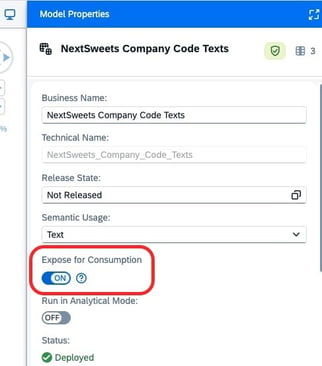
- Open SAP Datasphere.
- Locate the table you want to use as master data.
- Create a view for the table.
- In the view settings, enable Expose for Consumption.
- Ensure the view is accessible from the Space you want to connect to NextTables:
- Create the view directly in that Space, or
- Share the view to that Space.
📝 Note: NextTables connects to SAP Datasphere via views. The view must be visible to the Space user that NextTables uses for the connection.
💡 Tip: You can add pre-filters to your data in the SAP Datasphere view (via the usual Datasphere out-of-the-box way). With this you can dynamically react to time or other business cases, for example resolving time-dependent masterdata/texts.
2) Create a read-only Space user in SAP Datasphere
- In SAP Datasphere, create a dedicated Space user for NextTables.
- In the Create Database User Dialog, enable read access (SQL) for this Space user to give it access to the Space and to the view(s) you want to connect.
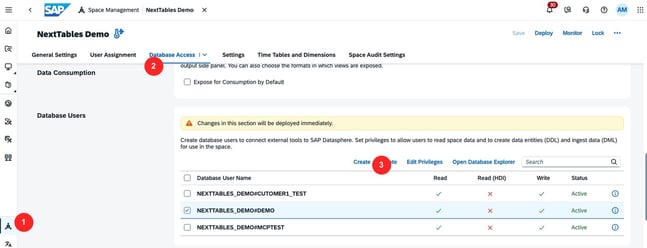
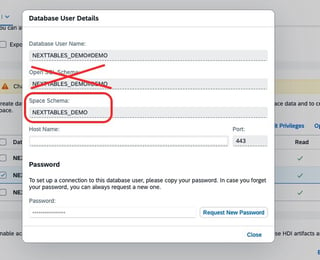
⚠️ Warning: Use a read-only user for existing tables. This keeps the connected tables read-only in NextTables.
3) Connect a read-only data source in NextTables (Admin → Databases)
- Open NextTables.
- Click your profile avatar.
- Click Administration.
- Click Databases.
- Click Connect database in the top right.
- Select SAP Datasphere as the target platform.
- Enter the connection details for the Space user.
- In the schema selection, enter the Space schema (not the Open SQL schema).
- Save the connection.
📝 Note: The Space schema is required so NextTables can discover and read the Space views you exposed for external consumption.
4) Connect the existing table (Admin → Tables)
- In NextTables, open Administration.
- Click Tables.
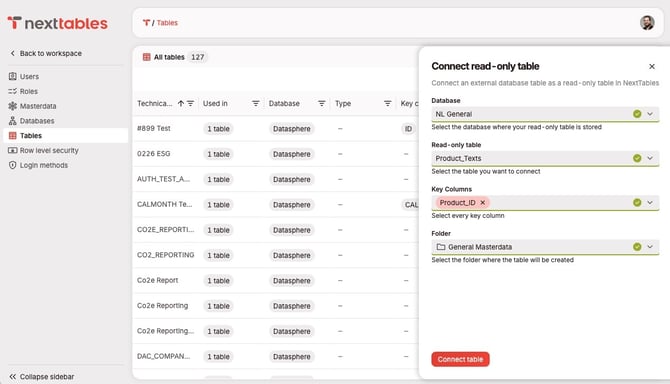
- Click Connect read-only table (top-right).
- In Database, select the read-only data source you created in Databases.
- In Read-only table, select the view you want to connect.
- You will only see views the Space user has access to.
- In Key Columns, select the column(s) that uniquely identify a row.
- Select one primary key column, or multiple columns for a composite key.
- In Folder, choose the folder where the table should appear in the sidebar.
- Click Connect table.
- In the success notification, click Go to table.
5) Verify the table is read-only
- In the connected table, confirm you can see the existing rows.
- Confirm that actions for editing data are not available, for example:
- Upload
- Add row
- Edit
- Delete
💡 Tip: Use existing tables when you want NextTables to reference existing master data or security lookup data that stays governed in the enterprise data platform.
6) Create an object based on the existing table
See Create and Use Masterdata Objects and Create and Use Row-Level-Security Objects.Troubleshooting / FAQs
Q: The view does not appear in the table selection dropdown.
A: Verify the view is exposed for external consumption in SAP Datasphere, and verify the Space user has read access to the view and the Space.
Q: I can see the view, but NextTables asks for primary keys and I am not sure what to pick.
A: Choose the column (or columns) that uniquely identify a row in the view. If the source table has a natural key (for example, MaterialID), use that. If uniqueness requires multiple columns, select a composite key.
Q: The connected table is editable, but I expected it to be read-only.
A: Verify you connected the table through the existing table workflow and used a read-only Space user for the SAP Datasphere connection.