
You will learn
How to make a form field appear, become required, or become editable based on what a user entered in another field, and which expression syntax NextTables forms support.
This article is for data platform owners and application builders who configure forms.
Prerequisites
- A table whose form you can edit, and the steps in How to set up a data entry form for a table.
- The Name of each field you want to reference in a condition. Names appear in the property panel under General.
- Keep How to write expressions for form conditions and rules open as the syntax reference.
📝 Note: A condition is a Boolean expression. It evaluates to true or false for one row at a time, using the values in that row.
1) Open the Conditions panel
- Open the table and select Edit form.
- Select the field you want to make conditional.
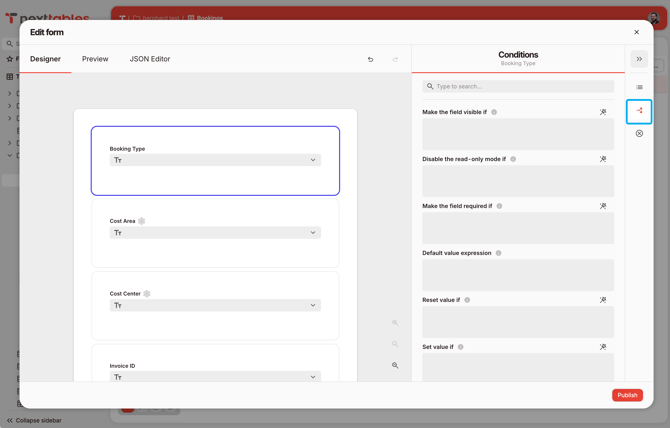
- Open Conditions in the property panel on the right.
💡 Tip: For any condition or expression field, use the Wand icon to build the expression in a guided no-code popup. You can also type the expression directly.
2) Show a field only when it applies
- Enter the condition under Make the field visible if.
- Reference another field by its name in braces. To show
Approval Commentonly for rejected rows:
{Status} = 'Rejected' - A hidden field takes no part in the form. Its rules are skipped, and the user cannot enter a value for it.
3) Require a field only when it applies
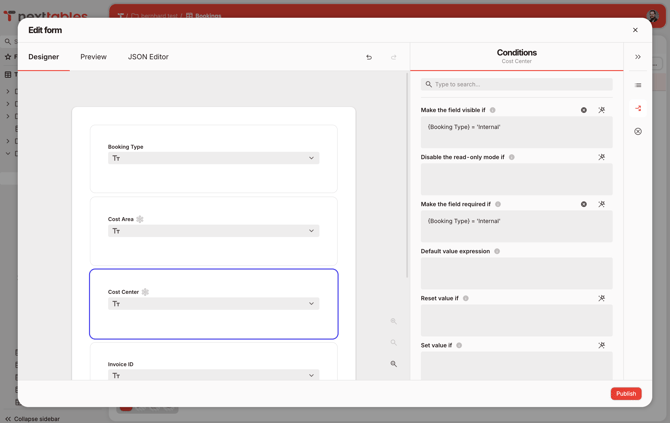
- Enter the condition under Make the field required if.
- To require
Cost Centerfor internal bookings:
{Booking Type} = 'Internal' - The field stays optional for every other value of
Booking Type. - A conditional requirement adds to the field's own requiredness. A field the table already requires stays required regardless of the condition.
📝 Note: Conditional requirements apply on every channel. A file import row with Booking Type = Internal and an empty Cost Center is rejected with the same message the form dialog shows.
4) Enable a field only when it applies
- Enter the condition under Make the field enabled if.
- The field stays visible and locked while the condition is false, so a user can see the value and read why it is locked from the helper text.
- Use enablement when a user should see the field at all times. Use visibility when the field is irrelevant and would only add noise.
5) Decide what happens to a hidden field's value
- Set Clear the field value if it becomes hidden to control whether a value survives when the field goes out of view.
- Clearing the value keeps a row consistent with the form that produced it. A row cannot carry a
Cost Centerfor a booking that is no longer internal. - Keeping the value preserves what the user typed if the field comes back into view.
⚠️ Caution: Clearing applies to file imports and API writes as well. A supplied value for a field that a visibility condition hides for that row is cleared before the row is saved, and the result reports it as a correction. Check your visibility conditions against your import files before you rely on them.
6) Fill or reset a value automatically
- Default value expression computes the value a new row starts with.
- Set value if, together with the expression that produces the value, updates the field whenever the condition becomes true.
- Reset value if clears the field whenever the condition becomes true.
- These three apply in the form dialog. A file import or an API write validates the values it receives and computes nothing, so a row entering through those channels does not gain a default or a set value.
7) Save and test both branches
- Select Save.
- Open Add row on the table and enter values that make the condition true.
- Enter values that make it false.
- Test both branches every time. A condition that is never false is the most common configuration mistake, and it looks like a working form.
Which conditions are available
| Panel label | Definition name | Effect | Where it applies |
|---|---|---|---|
| Make the field visible if | visibleIf |
Shows the field while the condition is true | Every channel |
| Make the field required if | requiredIf |
Requires a value while the condition is true | Every channel |
| Make the field enabled if | enableIf |
Allows edits while the condition is true | Every channel |
| Clear the field value if it becomes hidden | clearIfInvisible |
Clears the value when the field is hidden | Every channel |
| Default value expression | defaultValueExpression |
Computes the starting value of a new row | Form dialog |
| Set value if | setValueIf |
Updates the value when the condition becomes true | Form dialog |
| Reset value if | resetValueIf |
Clears the value when the condition becomes true | Form dialog |
Worked example: cost center for internal bookings
A booking table has Booking Type with the values Internal and External, plus Cost Center and Approval Comment.
- On
Cost Center, set Make the field required if to{Booking Type} = 'Internal'. - On
Cost Center, set Make the field visible if to{Booking Type} = 'Internal'so the field appears only where it applies. - On
Cost Center, set Clear the field value if it becomes hidden so switching a booking toExternalleaves no stale cost center behind. - On
Approval Comment, set Make the field visible if to{Status} = 'Rejected'and Make the field required if to the same expression. - Save, then test all four combinations in Add row.
The result holds on every channel. A key user filling the dialog and a file import of a thousand rows meet the same requirement, and a row whose booking is external carries no cost center either way.
Troubleshooting / FAQs
- Q: My condition never becomes true. What should I check first?
A: Check the field name in braces against the Name shown under General. A condition references the name, not the label, and a label you changed does not change the name. - Q: Should I compare against the label a user sees or the stored value?
A: Compare against the stored value. For a field bound to master data, that is the key, not the display text. - Q: I set a default value expression, and rows from a file import do not have it. Why?
A: Default values, set-value conditions, and reset-value conditions apply in the form dialog. Imports and API writes are validated, and no value is computed for them. Supply the value in the file, or make the field conditionally required so an empty value is rejected. - Q: A rule references a master data value that no longer exists. What happens?
A: That branch of the rule is treated as false while the value is missing. The form stays usable, and no error is raised. Review conditions after a master data cleanup. - Q: Can a condition reference a field that is not on the form?
A: Every field of the table is on its form, so any field of the table can be referenced. - Q: Can a dropdown filter its options based on an earlier selection?
A: Dependent dropdown behavior comes from the master data behind the field rather than from a condition on the form. See How to create and use master data objects.