

You will learn
How to create a read/write database connection from NextTables to the OpenSQL schema of a SAP Datasphere space, so business teams can create and maintain tables inside that schema through governed write-back to the enterprise data platform.
📝 Note: This connection gives NextTables read/write access to the OpenSQL schema of a SAP Datasphere space only. It does not grant access to other tables in the SAP Datasphere space. To connect to a space table, use How to connect an existing table from SAP Datasphere.
Prerequisites
- Administrator role in NextTables with the Manage databases site-level action.
- Rights to change the SAP Datasphere System Configuration (IP allow-list)
- Administrator rights in the desired SAP Datasphere space.
Step-by-Step Instructions
1) Allow-list the NextTables IP in SAP Datasphere
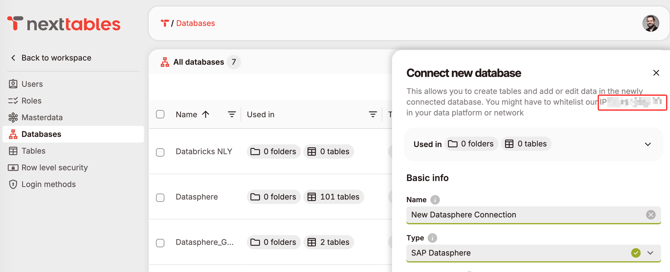
One-time per SAP Datasphere tenant. Additional connections to the same tenant reuse this allow-list entry.- In NextTables, open the Connect new database or Edit database connection dialog. Copy the NextTables IP address shown at the top of the dialog in the intro text.
-
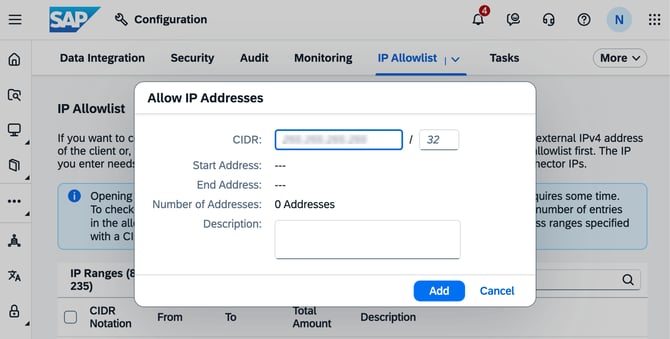
In SAP Datasphere, go to System → Configuration → IP Allowlist → Trusted IPs. Click Add, paste the IP into the CIDR field (leave the /32 suffix as is), then click Add. Click Save above the IP list to persist the entry.
-
You only need to do this once per SAP Datasphere tenant. Additional connections to the same tenant reuse the same allow-list entry.
2) Create a database user in SAP Datasphere
In SAP Datasphere, open the target space and go to Space Management → Database Access tab → Database Users section.
⚠️ Warning: Changes in this section are deployed immediately, there is no draft state.
- Click Create to open the Create Database User dialog.
- Grant the user read and write access on the OpenSQL schema. For the detailed SAP Datasphere walkthrough, see SAP's Create a Database User.
- Do not enable HDI consumption. NextTables does not use SAP HDI containers.
- Leave the audit trail option off. It would only track activity of this single OpenSQL schema user.
- After deployment, open Database User details and copy the Host, Port, Schema, Database username, and Password shown by SAP Datasphere, you will paste these into NextTables.
This user only sees objects in the OpenSQL schema. Tables that live elsewhere in the space are not exposed through this connection. To connect those, use How to connect an existing table from SAP Datasphere.
3) Create the database connection in NextTables
-
In NextTables, navigate to Administration → Databases.
-
Click Connect database. The Connect new database panel opens.
-
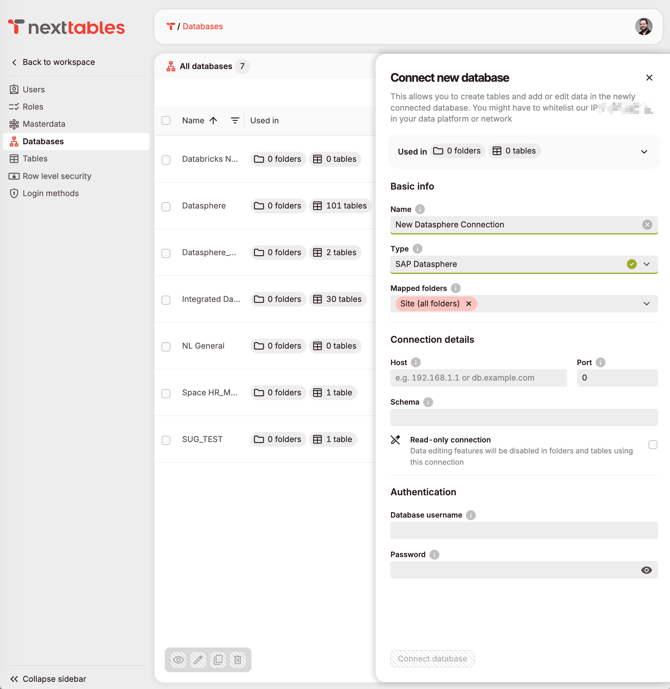
Under Basic info, set:
-
- Name: a clear identifier for the connection (for example SAP Datasphere Finance).
- Type: select SAP Datasphere.
- Mapped folders: controls which folders can use this connection. Leave Site (all folders) for a globally available connection, or scope to specific folders. For the recommended pattern and the impact on permissions, see Scoping Database Connections to Folders.
-
Under Connection details, paste the values from SAP Datasphere:
- Host
- Post
- Schema (the OpenSQL schema name)
-
Leave Read-only connection off. This connection needs write access so NextTables can create and maintain tables inside the OpenSQL schema.
-
Under Authentication. Paste the Database username and Password of the OpenSQL schema user.
-
Save the connection. NextTables validates connectivity to the SAP Datasphere OpenSQL schema.
Troubleshooting / FAQs
1. The connection fails to validate or times out. What's wrong?
The NextTables IP (find it at the top of the create-connection sheet in NextTables) is most likely not allow-listed on the SAP Datasphere tenant. In SAP Datasphere, go to System → Configuration → IP Allowlist → Trusted IPs and confirm the IP appears in the list. If not, add it following the steps in Allow-list the NextTables IP on your SAP Datasphere tenant.
2. I get an "authentication failed" error when saving the connection.
The OpenSQL schema user's password may have rotated, or it was never copied from SAP Datasphere. In SAP Datasphere, open the user's Database User Details dialog, click Request New Password, copy the new password immediately, and paste it into the Password field in NextTables.
3. NextTables returns a "schema not found" error.
The Schema field in NextTables must be the Open SQL Schema value from SAP Datasphere (for example NEXTTABLES_DEMO#NT_TEST), not the Space Schema (for example NEXTTABLES_DEMO). Only the Open SQL Schema is accessible through this connection.
4. I can read data but write operations fail.
The database user is missing the Enable Write Access (SQL, DDL, DML) privilege in SAP Datasphere. In Space Management → Database Access → Database Users, select the user, click Edit Privileges, enable the checkbox, and save.