
📝 Availability: NextTables for SAP BW, Professional and Enterprise editions.
You will learn
How to request a license key for NextTables in your SAP BW system, activate it, and renew it before it expires. The activation runs entirely inside NextTables, through a wizard that exchanges a system token for an installation token.
This article is for the system administrators of your SAP BW system. The activation is shown to them only, and so is the warning that a license is about to expire.
Prerequisites
- NextTables imported into the SAP BW system. The transport files and the installation guide come with your trial or your purchase, and the guide covers the import. It is delivered with the files rather than published, so there is no link to it here.
- System administrator rights in NextTables. Update License is shown to system administrators only. How object authorizations work in NextTables for SAP BW covers who may do what.
- A way to reach NextTables with the system token: either a mail client on the machine you are working on, or nexttables.com/support. Both routes are fine.
What one license covers
- One system, with its whole track. A license is generated for one system and covers its development, QA, production and sandbox systems. The installation token you receive is entered once in each of them, and it is the same token every time. Two productive systems need two licenses.
- Every user. All users in the SAP BW system can work in NextTables on one license, and your SAP authorizations decide who sees what.
- A number of connected tables, and how far your team can extend NextTables. Professional and Enterprise each come as Standard and Unlimited, and the license line in the product names which one you are running. The prices and licenses page lists what each one includes.
- A trial license runs for 60 days, counted from installation, and contains the full product. Try NextTables in your own SAP BW system.
Step-by-Step Instructions
1. Open the license information
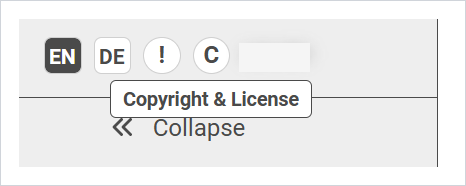
At the bottom of the NextTables menu sits a small bar with the language buttons and two round buttons. The one labeled C opens Copyright & License.
2. Read what the current license says
The dialog names the installed backend and frontend version, then states the license in one line: which edition it is for, the date it is valid to, and how many tables it allows. The license key itself stands underneath.
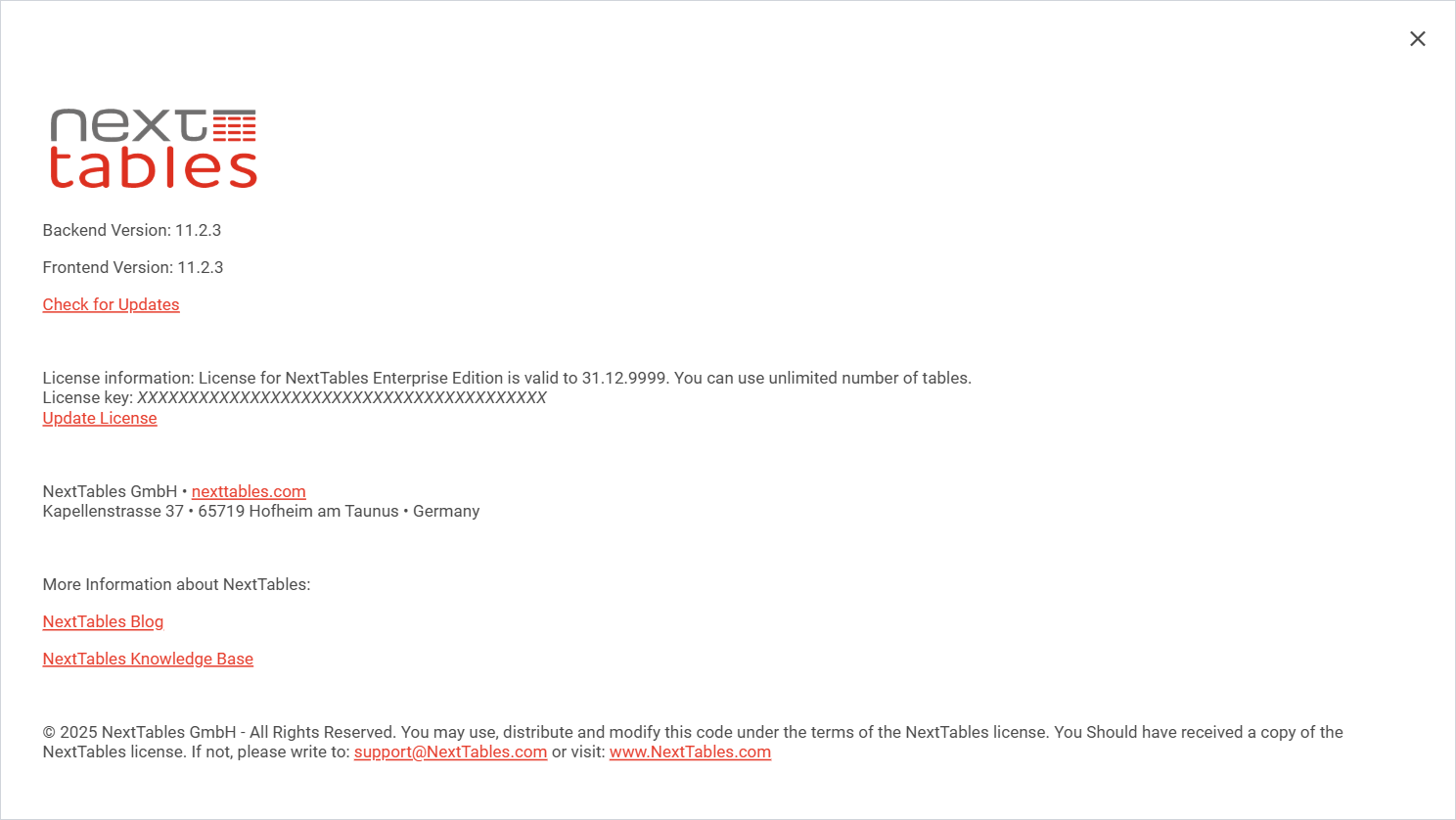
📝 Note: The license key in the screenshot is masked. Yours is a 40 character string, and it doubles as the password for the NextTables download page, so keep it where your team can reach it.
3. Start the Add License wizard
Select Update License. The Add License wizard opens at step 1 of 3.
4. Send your system token to NextTables
Step 1 shows the System token of this system. NextTables derives your installation token from it, so a license request has to carry it.
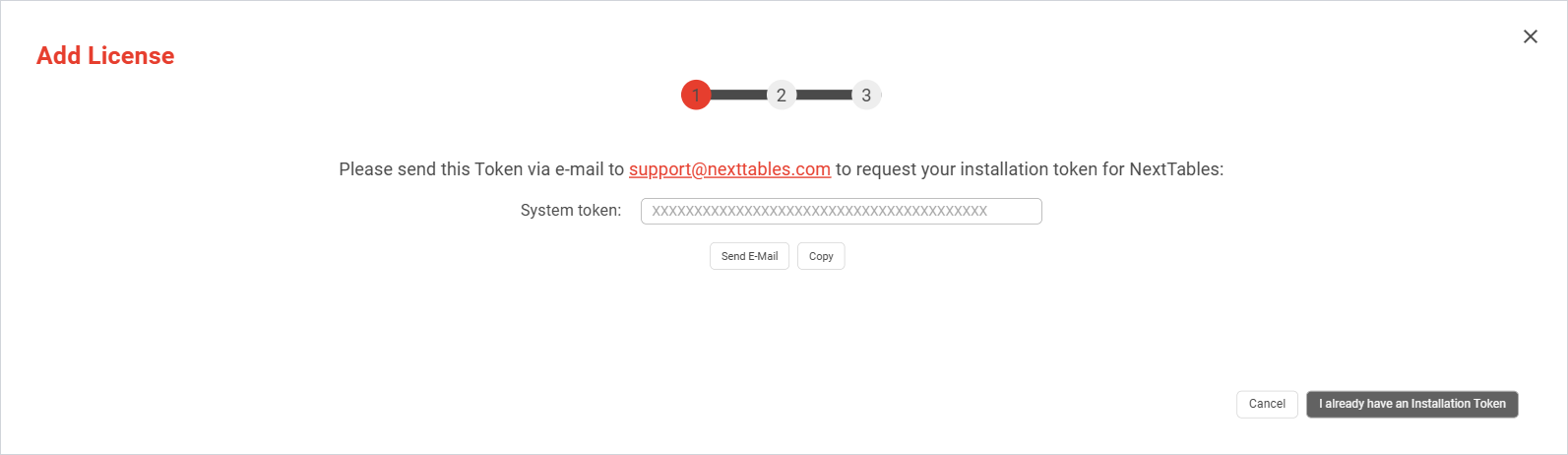
- Send E-Mail opens a message to NextTables support with the token already in it.
- Copy puts the token on the clipboard and confirms with Copied!. Use this route when the machine has no mail client, and send the token through nexttables.com/support.
Close the wizard with Cancel while you wait for the answer. Nothing is stored until you save an installation token.
5. Enter the installation token
NextTables answers with an installation token. Open Copyright & License again, select Update License, then I already have an Installation Token. Step 2 has a single field, Installation Token. Paste the token and select Save.
6. Check the result
Step 3 reports Your NextTables License has been activated successfully and shows the new Licensekey, Valid To and Max. No. of Tables. Close the dialog, open Copyright & License once more, and confirm that the license line carries the new validity date.
7. Repeat it in the other systems of the track
Development, QA, production and sandbox each carry their own license entry, and the token you already have covers all of them. Open NextTables in the next system and run steps 1 to 6 there with the same installation token. Asking for a second token is not normally necessary.
With the license active, the next step is connecting your first table: How to configure a table in NextTables for SAP BW.
What the License Information screen shows
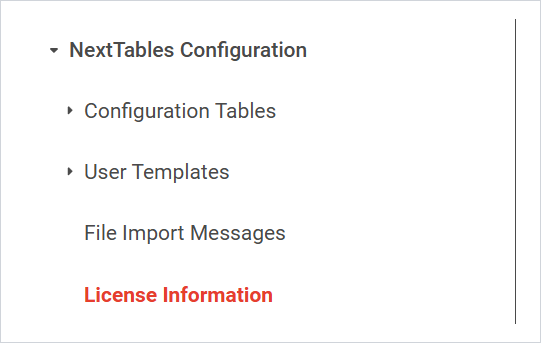
The (C) dialog answers in one line. NextTables Configuration → License Information in the menu opens the same license as a table row, with every field it carries. It is the quickest check after a renewal, because the values stand side by side.
| Field | What it holds |
|---|---|
| Application name | The product the license is for, NEXTTABLES. |
| License key | The key the installation token produced, and the password the download page asks for. |
| Valid to | The last day the license is valid. A perpetual license carries a date far in the future. |
| Maximum number of tables | How many tables the license covers. A license without a limit says so in the (C) dialog. |
| Company | The company the license was issued to. |
| Changed by, Changed on, Changed at | Who last entered a license here, and when. After a renewal this is your own user. |
| Backend Version | The NextTables version running in the system. |
Renewing a license
NextTables warns 30 days before the license expires, with the line Your NextTables license expires on and the date. System administrators see that warning, so the renewal is theirs to start.
Renew while the current license still runs. Once the date in Valid to has passed, NextTables can no longer be used until a valid license is entered, and that is true for every system of the track at its own date.
A renewal runs through the same wizard as the first activation: send the system token, receive an installation token, enter it in step 2. Your installation and your configuration are untouched by it, and so are your tables, menus and templates.
The same applies when you move to a different license, after a trial or when you need more connected tables. You receive a new key for the license that fits and enter it the same way.
Troubleshooting / FAQs
1. Where do I find our license number?
Open Copyright & License with the C button at the bottom of the menu. The license key stands under the license information line. It is also the password for the NextTables download page, so anyone who fetches a new version needs it. The release notes page explains the download itself.
2. NextTables says "License has expired!"
The message continues with Your license has expired. Add a new one to keep using NextTables. The date in Valid to has passed, and NextTables stays out of use until a valid license is entered. Ask NextTables for an installation token and enter it through Update License. Your configurations stay in the system and come back with the new license.
3. NextTables says "No license installed!"
The message continues with No license was found in the system. Add one to use NextTables. The application is imported and no license entry exists yet, which is the normal state of a fresh system. Run the steps above once for this system.
4. NextTables says "License is invalid!"
The message continues with Your license is invalid. Add a new one to use NextTables. The stored key does not fit this system. Check that the installation token you entered is the one issued for this track, and ask for a new one if the system was copied, renamed or newly installed.
5. Our license expires soon. What do we do?
Send your system token to NextTables the same way as for the first activation, and enter the installation token you receive. Do it while the current license still runs, so the system never sits without one.
6. We bought after the trial. Do we have to install NextTables again?
No. You receive a new license key and enter it through the same Add License wizard. Your installation and your configuration stay exactly as they are.
7. Do we need a separate license for our development and QA systems?
No. A license is generated for one system and covers its whole track: development, QA, production and sandbox. You enter the same installation token in each of those systems, one after the other. Two productive systems need two licenses. The prices and licenses page has the detail.
8. Can we move to a bigger license later?
Yes. The license decides how many tables you can connect and how far your team can extend NextTables in ABAP. Tell NextTables what you need and you receive a new key, which you enter through the same wizard.
9. How many users does one license allow?
Every user in the SAP BW system, on one license. Access follows your SAP authorizations, the same way it does for any other transaction. How object authorizations work in NextTables for SAP BW covers the objects involved.
10. There is no Update License entry in the dialog.
The entry is shown to system administrators only. Ask a system administrator in your system to run the activation.
11. Which SAP objects can NextTables reach once the license is active?
The object types NextTables supports and your own SAP authorizations decide that. The license decides how many tables you can connect and how far your team can extend NextTables in ABAP. Which objects NextTables for SAP BW can read and write has the matrix.