
You will learn
How to turn off data history for a table so an external system can write to it alongside NextTables, what the change removes permanently, and which NextTables features keep working afterwards.
This article is for administrators and data platform owners who register tables that other systems also write to.
🚨 Warning: Turning off data history is permanent and deletes the history the table has already recorded. NextTables offers no way to turn it back on. Read What you keep and what you lose before you change the setting.
Prerequisites
- A table registered in NextTables, with a view you can open.
- Permission to change the table's settings.
- Agreement from everyone who relies on the table's recorded history, because the change deletes it.
Why data history and external writes conflict
With data history on, NextTables records row-level changes and activity for a table on the assumption that it is the only system writing to it.
When another system writes to the same table, that assumption breaks in both directions. Writes from the other system never reach the history, and writes from NextTables produce a record that describes a fraction of what happened to the table. The result is a history that reads as complete and is not.
Turning data history off resolves this by having NextTables record nothing for that table. The table then has no NextTables history to be wrong about, and every other NextTables feature continues to work against it.
What you keep and what you lose
| Keeps working | Stops for this table |
|---|---|
| Table, filters, and the table grid | Row-level change history |
| Inline editing and the row entry forms | Activity events |
| Validation rules and master data checks on NextTables writes | The history already recorded, which is deleted |
| File import and export | |
| Roles, table permissions, and row-level security |
Your data is not affected. The rows in the table stay exactly as they are, and only the recorded history of how they got there is removed.
1) Check who relies on the table's history
- Ask whoever uses the table whether anyone reads its change history or activity, for audit, reconciliation, or support.
- Export anything that has to be kept before you continue. The change deletes the recorded history, and NextTables keeps no copy.
2) Open the table settings
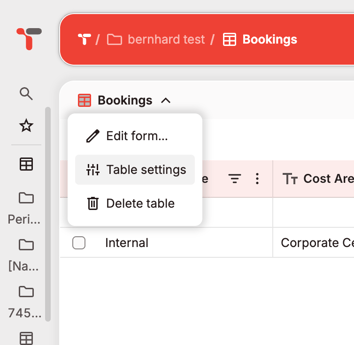
- Go to your table in NextTables
- Open the table's settings.
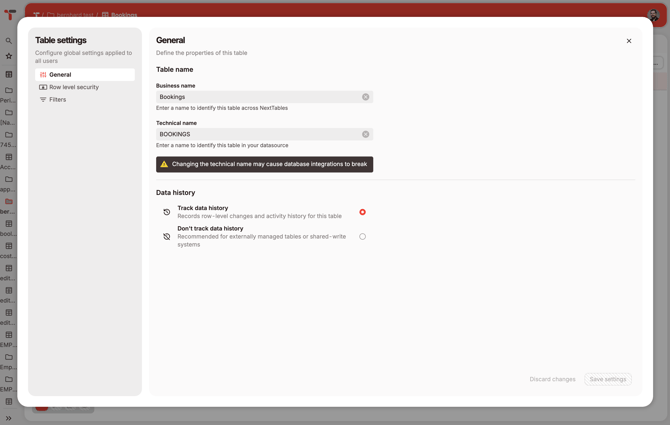
- Find the Data history section on the General tab.
3) Select Don't track data history
- The section offers two choices:
- Track data history, described as "Records row-level changes and activity history for this table". This is how every table starts.
- Don't track data history, described as "Recommended for externally managed tables or shared-write systems".
- Select Don't track data history.
- Save the settings.
4) Confirm the permanent change
- A dialog opens, titled Stop tracking data history?
- It states that NextTables will permanently stop recording row-level history and activity events for the table and delete all history, and that the action cannot be undone.
- Select I understand this action is permanent.
- Select Stop tracking.
⚠️ Caution: This is the last point at which you can stop. Closing the dialog leaves data history on and changes nothing.
5) Verify the new state
- Reopen the table settings. The Data history section now reads Data history tracking has been turned off, with the note It cannot be re-enabled, and the choices are gone.
- Open the table information on the table by hovering over the name. Data history tracking reads Disabled.
- In Administration, open Tables. The History column shows the state for every table, so you can confirm the right table changed.
After data history is off
The external system writes to the table in the data source as it always would. NextTables reads the table's current contents, so rows written by the other system appear in the grid alongside rows entered through NextTables. No synchronization step is involved, because both systems work on the same table.
⚠️ Caution: A write that arrives from the external system does not pass through NextTables, so the validation rules, master data checks, and row-level security configured in NextTables do not apply to it. Those rules govern what NextTables writes. Keep the external system's own validation in place.
Troubleshooting / FAQs
Q: Can I turn data history back on?
A: No. The setting is one-way by design. Once it is off, the section is locked and reads "It cannot be re-enabled". To get a table with history again, create a new table with data history left on and move the data across.
Q: Does turning off data history delete my rows?
A: No. The rows are untouched. What is deleted is the recorded history of row-level changes and activity for that table.
Q: I get the message "Data history is already disabled for this table."
A: The table's history was turned off previously, possibly from a different view on the same table. Check the History column under Administration then Tables to confirm.
Q: Do I have to turn data history off before an external system can write to the table?
A: NextTables does not block the external system either way. But as soon as the external system writes to the same table, NextTables features might break or not work as expected.
Q: Do forms and validation rules still apply?
A: Yes, to every write made through NextTables: the row entry forms, inline editing, file import, and the API. A write made directly by the external system bypasses NextTables and its rules.
Q: Does row-level security still apply?
A: Yes. Roles, table permissions, and row-level security work unchanged, and govern what each user sees and may change through NextTables.
Q: Can I use this for a table that NextTables did not create?
A: Yes. In fact, registering an existing, externally written table will connect it with the history already disabled.
Q: Who is allowed to change the setting?
A: Anyone with permission to change the table's settings. Given that the change is permanent and deletes history, keep that permission with the people who own the table.