
You will learn
How to add validation rules to a form field, which rule types each field type offers, how to choose whether a rule blocks the save or warns, and how the message reaches users on every channel.
This article is for data platform owners and application builders who configure forms.
Prerequisites
- A table whose form you can edit, and the steps in How to set up a data entry form for a table.
- For expression rules, keep How to write expressions for form conditions and rules open as the syntax reference.
📝 Note: Validation rules apply on every channel that writes into the table: the form dialog, inline editing in the view's table, file imports, and API writes. One rule, configured once, holds everywhere.
1) Open the Validation panel
- Open the table and select Edit form.
- Select the field you want to validate.
- Open Validation in the property panel on the right.
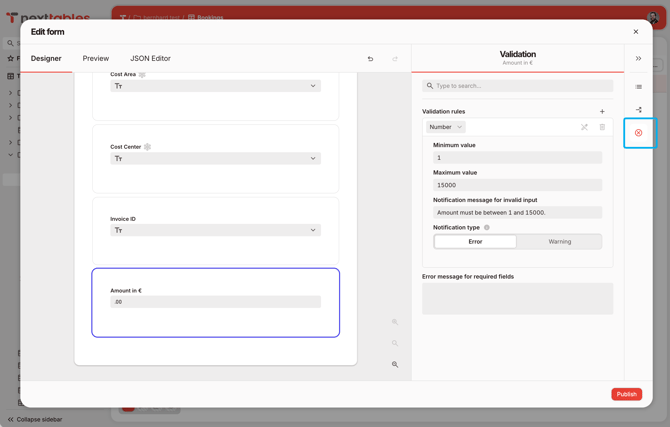
2) Add a rule and choose its type
- Add a rule under Validation rules.
- Choose the type. Which types are offered depends on the field's data type:
| Field type | Rule types offered |
|---|---|
| Text | Text length, Pattern, Expression |
| Number | Number range, Expression |
| Date, Time, Checkbox | Expression |
- A field can carry several rules. Each is evaluated on its own, and each has its own message and its own severity.
3) Limit the length of a text value
- Choose the Text rule type.
- Set Min length, Max length, or both.
- Set Allow digits to decide whether digits are accepted in the value.
- A text rule needs at least one of the two length bounds. A rule with neither blocks the save until you complete it.
4) Limit a number to a range
- Choose the Numeric rule type.
- Set Min value, Max value, or both.
- To enforce
1through5on a rating field, set Min value to1and Max value to5.
5) Match a pattern
- Choose the Regex rule type.
- Enter the pattern under Regular expression. To require a
Vfollowed by six digits:
^V\d{6}$ - Set Case insensitive if letter case should be ignored.
- Anchor the pattern with
^and$when the whole value has to match. A pattern without anchors matches anywhere in the value, soV\d{6}also acceptsXXV123456YY.
6) Compare fields with an expression rule
💡 Tip: For any condition or expression field, use the Wand icon to build the expression in a guided no-code popup. You can also type the expression directly.
- Choose the Expression rule type.
- Enter a Boolean expression that has to hold. To keep an end date on or after its start date:
{End Date} >= {Start Date} - An expression rule is the way to express anything that involves more than one field, or a bound that is itself computed:
{Amount} <= {Budget} {Total} = sum({Q1}, {Q2}, {Q3}, {Q4}) iif({Booking Type} = 'Internal', {Cost Center} notempty, true) - Reference fields by their Name, and use the operators and functions listed in How to write expressions for form conditions and rules.
7) Choose whether the rule blocks the save
- Set the rule's message type to Error or Warning.
- Error blocks the write. The form dialog holds the submit, and a file import row is rejected.
- Warning allows the write. The row saves, and the message is reported alongside the result, including on a successful write.
- A rule with no message type set behaves as an error.
- Use a warning for a soft rule you want people to see and be able to override, such as an amount above a usual threshold.
8) Write the message users read
- Enter the message on the rule.
- The message appears next to the field in the form dialog, in the per-row report of a file import, and in the API response, identical in all three.
- Write what the user should do, not what the rule tested.
Vendor code must be a V followed by six digits, for example V123456.beatsRegex validation failed. - A rule with no message falls back to a default message.
9) Save and test with data that fails
- Select Save.
- Open Add row and enter a value that violates the rule. Confirm the message and whether the submit is held.
- Import a small file containing a failing row. Confirm the same message appears in the import result.
- Test the passing case as well. A rule that rejects everything reads as a working rule until someone tries valid data.
Which requirements are always errors
Two kinds of violation block the write regardless of any message type you set:
- A missing required value. Both the field's own requiredness and a conditional requirement from the form.
- A change to a read-only field. The field is locked in the form dialog and in inline editing, and a changed value from a file import or an API write is rejected.
To express a requirement that should warn rather than block, leave the field optional and write an expression rule such as {Cost Center} notempty with the message type set to Warning.
Rule reference
| Rule type | Definition name | Settings | Available on |
|---|---|---|---|
| Text length | text |
minLength, maxLength, allowDigits |
Text fields |
| Number range | numeric |
minValue, maxValue |
Number fields |
| Pattern | regex |
regex, caseInsensitive |
Text fields |
| Expression | expression |
expression |
Every field type |
Every rule type also carries the message (text) and the message type (notificationType, either error or warning).
Troubleshooting / FAQs
- Q: Save reports an incomplete validation rule. What is missing?
A: The rule has a type but not the setting that type needs: a length bound for a text rule, a value bound for a number rule, a pattern for a pattern rule, or an expression for an expression rule. The message names the fields involved. Complete the rule or remove it. - Q: A rule I configured is not rejecting anything on import.
A: Check whether the field is hidden for those rows by a visibility condition. Rules on a hidden field are skipped for that row. See How to show, hide, and require form fields with conditions. - Q: I edited a rule while a large import was running, and the import used the old rule.
A: Expected. An import applies the form definition as it stood when the job started, so the rules are the same for every row of that file. Re-run the import to apply the new rule. - Q: Which rule type should I use for an email address or a URL?
A: A Pattern rule with a regular expression that matches the format you accept. - Q: Can a warning be turned into an error later?
A: Yes. Change the message type on the rule and save. Rows already stored are unaffected, and the new severity applies to the next write. - Q: My messages appear in one language for every user. Can I translate them?
A: Rule messages are returned as written, in one language, so that the form dialog, the import report, and the API response agree word for word. Per-user translation is planned separately. - Q: Does a validation rule run when nothing on the row changed?
A: Rules are evaluated on every write. A row that is saved without changes is validated against the current rules, so a row that predates a rule can be rejected the next time someone saves it.