
You will learn
How to set up Table Filters — administrator-only, global pre-filters on a table that restrict which rows every user (or a specific user, using dynamic values) can read and write. You'll also learn how Table Filters are enforced across the grid, file export/import, Master Data Object search, and Row-Level Security Object (RLSO) resolution.
📝 Note: Table Filters work like Row-Level Security, but at the table level instead of per user. Combine both when you need table-wide pre-filtering (for example, active records only) alongside per-user row scoping. See How to Create and Use Row-Level Security Objects (RLSO).
Prerequisites
- Edit Table rights in NextTables. Only administrators can create, edit, enable, or disable Table Filters — other users cannot see or change them.
- (Optional) Familiarity with How to Create and Use Row-Level Security Objects (RLSO) and How To Create and Use Master Data Objects if this table also backs an RLSO or a Master Data Object.
Step-by-Step Instructions
1) Open Table Filters settings
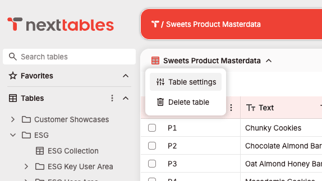
- Click the table name to open Table settings.
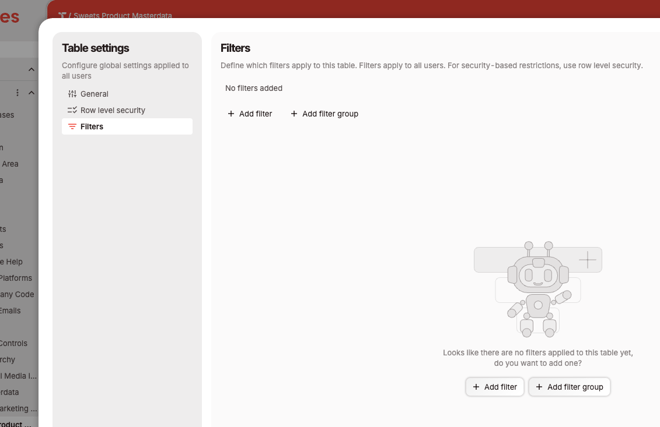
- In the left-hand navigation, select Filters.
2) Build filter groups and conditions
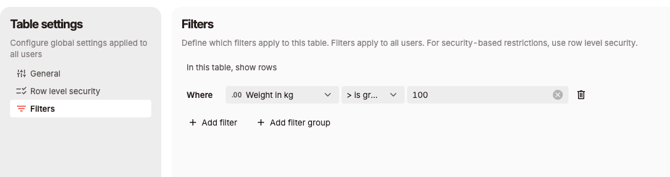
- Click Add filter group to start a condition block. Combine multiple groups with AND / OR. Alternatively, click Add filter to start a single filter row.
- Inside a group, click Add filter, then select a field.
- Choose an operator. The operators offered depend on the field's data type — see Operators by field type below.
- Choose a value: either a fixed (static) value you type in, or a dynamic value from the list — see Dynamic values below.
3) Enable or disable the filters
- Toggle Filters enabled at the bottom of the Filters page, then save.
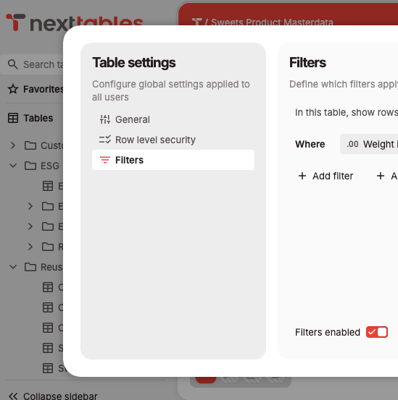
💡 Tip: Disabling the toggle does not delete your filter groups or conditions — it just ignores them until you re-enable it. This is the fastest way to debug whether unexpected data behavior is caused by a Table Filter.
Operators by field type
| Field type | Available operators |
|---|---|
| Text | contains, does not contain, is equal to, is not equal to, is greater than, is less than, is greater than or equal to, is less than or equal to, is empty, is not empty |
| Number / Decimal number | is equal to, is not equal to, is greater than, is less than, is greater than or equal to, is less than or equal to, is empty, is not empty |
| Date | is, is not, is after, is on or after, is before, is on or before, is within, is empty, is not empty |
| Time | is equal to, is not equal to, is later than, is earlier than, is later than or equal to, is earlier than or equal to, is empty, is not empty |
| Checkbox | selected, unselected, unset |
📝 Note: The contains / does not contain operators work like a SQL LIKE comparison — use % as a wildcard in the value. For example, Alpha% matches any text starting with "Alpha".
Dynamic values
Instead of a fixed value, you can filter against a dynamic value that is evaluated at read/write time:
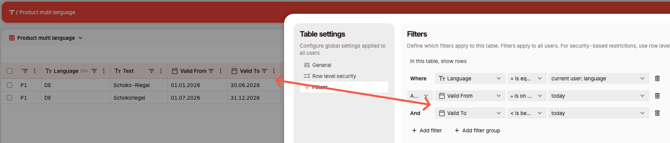
- Date / Time fields: today, tomorrow, yesterday, one week ago, one week from now, one month ago, one month from now, a chosen number of days ago, a chosen number of days from now, or an exact date.
- Text fields: current user: email, current user: language (for example,
DE).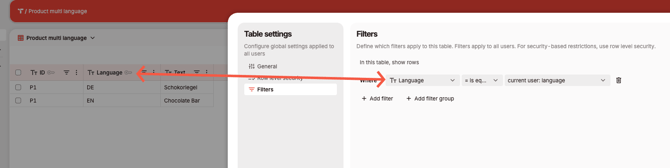
💡 Tip: Use current user: email on a field that stores the person a row is assigned to, so each user only reads and writes their own records. Use current user: language on a language/locale field (ISO format) to serve each user localized master data text automatically.
How Table Filters are enforced
Once enabled, a Table Filter is respected everywhere the table's data is read or written:
- Grid display — filtered-out rows are not shown to users.
- Row read and write — users can only read and write rows that match the filter.
- File export and import — downloads and uploads also respect the filter.
Table Filters, Master Data Objects, and search
If a table is used as the source view for a Master Data Object, that object respects the view's Table Filters when it is read — including in the search dropdown users see when selecting a master data value.
Common use cases:
- Localized text: filter on current user: language so a master data search/dropdown shows only the text in the user's language (see screenshot above).
- Time-dependent master data: filter
Valid From/Valid Toagainst today so only currently valid records appear in search and in the grid's key-text display (see screenshot above). - Active-only records: filter an
Is Activecheckbox field to selected, so only active records appear in search and grid display.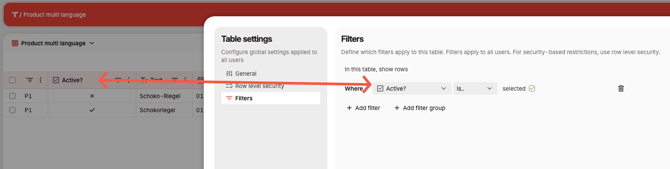
Table Filters and Row-Level Security Objects (RLSO)
The same date and checkbox patterns apply when NextTables reads an RLSO control table. For example, if a user's team assignment changes but should only take effect starting next month, filter the RLSO control table's Valid From / Valid To columns against today — the new authorization then applies automatically from that date, without manual cleanup of past or future rows. See How to Create and Use Row-Level Security Objects (RLSO).
Combine with URL Parameters
Table Filters become more powerful when combined with view URL parameters. For example, filter a table on current user: language and then use the hide URL parameter to hide the language field from the view — users see only the text in their own language, without ever seeing the field that was filtered on. See How to Use URL Parameters.
Troubleshooting / FAQs
Q: I don't see a Table settings.
A: Only administrators can access Table Filters. Ask a workspace administrator to configure or check them for you.
Q: I changed a filter, but the data doesn't seem to reflect it.
A: Confirm the Filters enabled toggle is on and that you saved the change. Also check whether a different filter group/operator combination is unintentionally excluding rows.
Q: Can I filter a table based on who is viewing it?
A: Yes. On a Text field, choose the current user: email or current user: language dynamic value instead of a fixed value. If you need more advanced per user filtering, use a Row-Level Security Object (RLSO) instead (see How to Create and Use Row-Level Security Objects (RLSO))
Q: Does the contains operator support wildcards?
A: Yes. It works like a SQL LIKE comparison — use % as a wildcard anywhere in the value.
Q: If I disable Table Filters to debug an issue, do I lose my filter setup?
A: No. Disabling only stops the filters from being applied — your filter groups and conditions are preserved and reapplied when you re-enable the toggle.
Q: Are Table Filters respected when a table is used as the source view for a Master Data Object?
A: Yes. When a table's view is used as the source view for a Master Data Object, that object respects the view's Table Filters whenever it is read — including in the search dropdown a user sees when selecting a master data value, and in the key-text shown in the grid. This makes Table Filters useful for master data scenarios such as: filtering on current user: language so each user only sees and searches master data text in their own language; filtering Valid From / Valid To against today so only currently valid, time-dependent master data records are searchable and displayed; and filtering an Is Active checkbox field to selected so only active records appear in search results and in the grid's key-text display.
Q: Are Table Filters respected when reading Row-Level Security Objects (RLSO)?
A: Yes. When NextTables reads a Row-Level Security Object's control table, it respects any Table Filters configured on that table's source view, the same as for any other table. This is especially useful for resolving time-dependent authorizations — for example, if a user's team assignment changes and the new access should only take effect starting next month, filter the RLSO control table's Valid From / Valid To columns against today so the correct authorization applies automatically from that date, without manually cleaning up past or future rows. The same pattern applies to an Is Active-style flag on RLSO control data, to filter entitlements down to only the currently active rows.