
You will learn
How to reference fields in a NextTables form expression, which operators and functions are available, and how to test an expression before you rely on it.
This article is a reference for data platform owners and application builders who configure form conditions and validation rules.
📝 Note: An expression is evaluated for one row at a time, using the values in that row. It reads values and returns a result. It never writes to the row.
Prerequisites
- A table whose form you can edit, and the steps in How to set up a data entry form for a view.
- The Name of each field you want to reference. Names appear in the property panel under General.
Where expressions are used
| Setting | Expression returns | Where it applies |
|---|---|---|
| Make the field visible if | True or false | Every channel |
| Make the field required if | True or false | Every channel |
| Make the field enabled if | True or false | Every channel |
| Expression validation rule | True or false | Every channel |
| Default value expression | A value | Form dialog |
| Set value if | True or false | Form dialog |
| Set value expression | A value | Form dialog |
| Reset value if | True or false | Form dialog |
See How to show, hide, and require form fields with conditions for the conditions, and How to validate form entries with validation rules for the expression rule type.
1) Find the field names you need
- Open the table and select Edit form.
- Select a field and read Name under General.
- Use the name, not the label. Renaming a label leaves the name unchanged, so a condition written against a label fails silently.
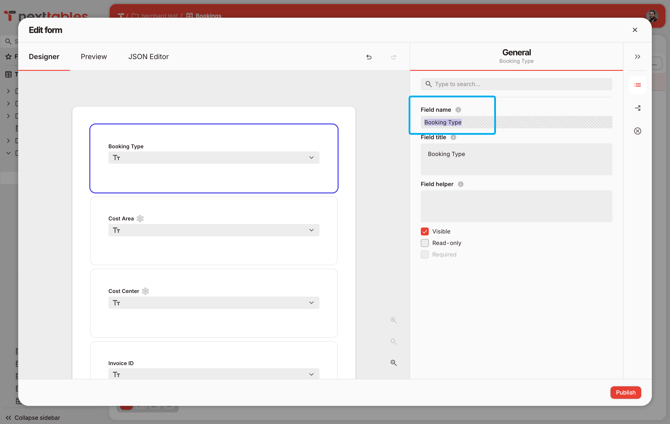
2) Write the expression
- Wrap each field reference in braces:
{Booking Type}. - Quote text values with single quotes:
'Internal'. - Write numbers and true or false without quotes:
1000,true. - Group with parentheses whenever
andmeetsor.
3) Test both outcomes
- Save the form.
- Open Add row and enter values that make the expression true.
- Enter values that make it false.
- Confirm both. An expression that is always true and an expression that is always false both look like a working configuration from one direction.
Referencing values
| To reference | Write | Notes |
|---|---|---|
| Another field on the form | {Booking Type} |
Use the field's Name |
| A field whose name has spaces | {Cost Center} |
Braces are enough, no quotes |
| A text value | 'Internal' |
Single quotes |
| A number | 1000 |
No quotes, decimal point for decimals |
| True or false | true, false |
No quotes |
| A list of values | ['DACH', 'Iberia'] |
Square brackets, for anyof, allof, noneof |
| A field bound to master data | {Cost Center} |
Compares against the stored key, not the display text |
⚠️ Caution: A field bound to master data holds the key, and the form shows the description. {Region} = 'Germany' compares against the key, so it fails when the key is DE. Check the stored value in the view's table before writing the expression.
Comparison operators
| Operator | Also written as | Meaning | Example |
|---|---|---|---|
= |
==, equal |
Equal to | {Status} = 'Open' |
!= |
<>, notequal |
Different from | {Status} != 'Closed' |
> |
greater |
Greater than | {Amount} > 1000 |
< |
less |
Less than | {Amount} < 100 |
>= |
greaterorequal |
Greater than or equal to | {End Date} >= {Start Date} |
<= |
lessorequal |
Less than or equal to | {Discount} <= 0.2 |
empty |
Has no value | {Cost Center} empty |
|
notempty |
Has a value | {Cost Center} notempty |
|
contains |
*= |
Text contains a substring | {Vendor Code} contains 'V1' |
notcontains |
Text does not contain a substring | {Notes} notcontains 'draft' |
|
anyof |
Matches at least one value in a list | {Region} anyof ['DACH', 'Iberia'] |
|
noneof |
Matches no value in a list | {Region} noneof ['APAC'] |
|
allof |
Matches every value in a list | {Tags} allof ['audited', 'signed'] |
The word forms and the symbol forms behave identically. Pick one and keep to it across a form, so the next person reading it has one thing to learn.
Logic
| Operator | Also written as | Meaning |
|---|---|---|
and |
&& |
Both sides hold |
or |
` | |
! |
negate |
Reverses a condition |
Parenthesize as soon as an expression mixes and with or. These two read alike and behave differently:
{Type} = 'A' or {Type} = 'B' and {Amount} > 1000 ({Type} = 'A' or {Type} = 'B') and {Amount} > 1000 Arithmetic
| Operator | Meaning | Example |
|---|---|---|
+ |
Addition | {Net} + {Tax} = {Gross} |
- |
Subtraction | {Budget} - {Spent} >= 0 |
* |
Multiplication | {Quantity} * {Unit Price} = {Total} |
/ |
Division | {Spent} / {Budget} <= 0.9 |
% |
Remainder | {Quantity} % 10 = 0 |
^ |
Exponentiation | {Side} ^ 2 = {Area} |
Functions
Conditional
| Function | Returns | Example |
|---|---|---|
iif(condition, a, b) |
a when the condition holds, otherwise b |
iif({Amount} > 1000, 'High', 'Standard') |
Nest iif for a rule that depends on a value rather than on a yes or no:
iif({Booking Type} = 'Internal', {Cost Center} notempty, true) Dates and times
| Function | Returns | Example |
|---|---|---|
currentDate() |
The current date and time | {Start Date} >= currentDate() |
today() |
Today | {Posting Date} <= today() |
today(days) |
Today shifted by a number of days | {Due Date} <= today(30) |
year(date) |
The year | year({Posting Date}) = 2026 |
month(date) |
The month, 1 through 12 | month({Posting Date}) <= 6 |
day(date) |
The day of the month, 1 through 31 | day({Cutoff}) = 1 |
weekday(date) |
The day of the week, 0 for Sunday | weekday({Delivery Date}) anyof [1, 2, 3, 4, 5] |
dateDiff(a, b, unit) |
The distance between two dates | dateDiff({Start Date}, {End Date}, 'days') <= 90 |
dateAdd(date, amount, unit) |
A date shifted by an amount | {End Date} <= dateAdd({Start Date}, 1, 'years') |
age(date) |
Whole years elapsed since a date | age({Contract Start}) >= 1 |
Units for dateDiff and dateAdd: seconds, minutes, hours, days, months, years.
Arithmetic across fields
| Function | Returns | Example |
|---|---|---|
sum(a, b, ...) |
The total | sum({Q1}, {Q2}, {Q3}, {Q4}) = {Total} |
min(a, b, ...) |
The smallest value | min({Bid A}, {Bid B}) = {Awarded} |
max(a, b, ...) |
The largest value | {Ceiling} >= max({Q1}, {Q2}) |
avg(a, b, ...) |
The average | avg({Q1}, {Q2}, {Q3}, {Q4}) <= {Target} |
These take a list of fields on the same row. Each argument is one value.
What an expression cannot reach
A NextTables form holds one value per field for one row, so anything that needs a second row or a repeating group has nothing to work with.
| Out of reach | What to do instead |
|---|---|
| Values from another row, such as the previous row or the row position | Compare fields within the row |
| Totals across the rows of a table | Compute the total in the view or in the platform, expose it as a field, then reference that field |
| Aggregations over a repeating group of inputs | Use sum, min, max, or avg over the named fields of the row |
| A check that another table contains a value | Bind the field to a master data object, which restricts entry to permitted values |
| Custom functions of your own | Compose the operators and functions above |
| The signed-in user or the current time zone | Not available in an expression |
General-purpose survey documentation lists aggregation functions ending in InArray, and placeholders for matrix rows and repeating panels. A NextTables form has none of those structures, so those functions and placeholders have nothing to read.
Worked examples
Copy these and replace the field names with your own.
Require a field when another has a specific value
{Booking Type} = 'Internal' Require a field when another has any of several values
{Region} anyof ['DACH', 'Iberia'] Show a field only when another is filled in
{Approver} notempty Keep an end date on or after its start date
{End Date} >= {Start Date} Keep a period within one year
dateDiff({Start Date}, {End Date}, 'days') <= 365 Reject a date in the past
{Delivery Date} >= today() Restrict a date to working days
weekday({Delivery Date}) anyof [1, 2, 3, 4, 5] Keep a total consistent with its parts
sum({Q1}, {Q2}, {Q3}, {Q4}) = {Total Year} Keep an amount inside a budget on the same row
{Amount} <= {Budget} Warn above a threshold without blocking
Write the expression as a validation rule and set its message type to Warning:
{Amount} <= 50000 Require one of two fields
{Email} notempty or {Phone} notempty Apply a rule only to one category
iif({Category} = 'Capex', {Asset Number} notempty, true) Troubleshooting / FAQs
- Q: My expression never becomes true. What should I check first?
A: The field name. Compare what is inside the braces against Name under General, character for character. A label you edited does not change the name. - Q: I compare a dropdown against the text I see, and nothing matches.
A: A field bound to master data stores the key and displays the description. Compare against the key. - Q: My combination of
andandorbehaves unexpectedly.
A: Add parentheses around eachorgroup. Precedence rules are easy to misread, and explicit grouping removes the question. - Q: An expression on an empty field behaves oddly.
A: Test for emptiness first.{Amount} > 1000on an empty field is not a comparison worth relying on, whereas{Amount} notempty and {Amount} > 1000states what you mean. - Q: How do I compare two dates that include a time?
A: Compare them directly with>=and<=, or reduce them to the part you care about withyear,month, orday. UsedateDiffwhen the distance between them is what matters. - Q: Can an expression change a value?
A: A default value expression and a set value expression produce a value, and both apply in the form dialog. Conditions and validation rules read values and never write them. See How to show, hide, and require form fields with conditions. - Q: Where do I write a regular expression?
A: In a pattern validation rule, not in an expression. See How to validate form entries with validation rules. - Q: Does an expression run on file imports and API writes?
A: Visibility, conditional required, enablement, and expression validation rules run on every channel. Default value, set value, and reset value apply in the form dialog.