
You will learn
How to load data from an SAP Datasphere space into a NextTables table on a schedule. NextTables stores its tables in the Open SQL schema of a database user of your space (schema name SPACE#USER). An SQL procedure in that schema reads your source view and merges the rows into the NextTables table, and a task chain runs the procedure on a schedule. The loaded rows are available in NextTables as soon as the run finishes.
This article is for SAP Datasphere modelers and NextTables administrators who want to fill a NextTables table from data that already lives in a Datasphere space, for example to prefill planning values that business users then maintain in NextTables.
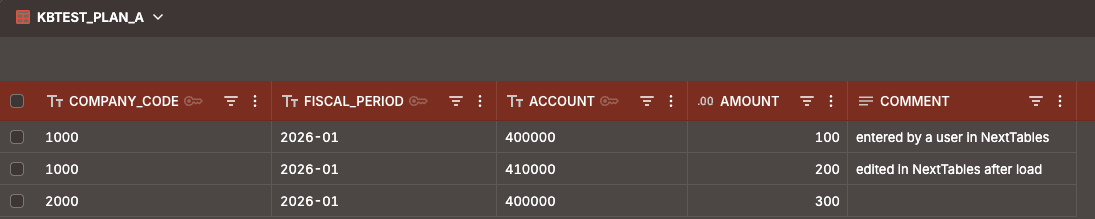
The procedure writes only the columns you list, so values that users maintain in NextTables, such as comments, survive every load.
Prerequisites
- A read/write database connection from NextTables to the Open SQL schema of your space, set up as described in How to Create a Database Connection to SAP Datasphere. It is listed in NextTables under Administration → Databases.
- Access to the SAP HANA Database Explorer as the database user of that Open SQL schema.
- Space administrator rights in SAP Datasphere, to change the privileges of that database user.
- Permission in the space to create, deploy and run task chains in the Data Builder.
- Your consent for SAP Datasphere to run tasks on your behalf, given in your profile settings under Authorized Consent Settings. A task chain cannot run a procedure without it, even when you start the chain manually. The consent is valid for 365 days.
- Administrator access in NextTables, for Connect table and for the table settings.
- A space without the Relational Data Lake Engine. Task chains cannot run Open SQL procedures in spaces where it is enabled.
📝 Note: The examples in this article use the space SALES, the Open SQL schema SALES#NEXTTABLES, the source view V_PLAN_SOURCE and the table PLAN_DATA with the key columns COMPANY_CODE, FISCAL_PERIOD and ACCOUNT. Replace them with your own names.
Two ways to create the target table
You can create the target table in NextTables (path A) or create it with SQL and then connect it to NextTables (path B). Both work. They differ in how a row is identified, and that decides what the load has to do.
| Path A: created in NextTables | Path B: created with SQL, then connected | |
|---|---|---|
| Where you maintain the table structure | In the NextTables interface | With SQL in the SAP HANA Database Explorer |
| How a row is identified | The technical column NEXTHUB_ID |
Your business primary key |
| Extra work in the load | Give every new row a NEXTHUB_ID |
None |
| Data history | Must be turned off | No action needed |
| Best suited for | Tables that already exist in NextTables | New tables that Datasphere loads on a regular basis |
Step-by-Step Instructions
1) Create the target table
Path A: create the table in NextTables
- Create the table in NextTables as usual. NextTables creates it in the Open SQL schema and adds the technical column
NEXTHUB_ID(VARCHAR(255), primary key, no default value). - Open the Table settings of the table. Under Data history, select Don't track data history and confirm the dialog. The full procedure, and what the change removes, is in How to turn off data history for externally written tables.
🚨 Warning: Turning off data history is permanent. The history the table has already recorded is deleted, and data history cannot be turned back on. This setting is meant for tables that other systems write to as well, which is exactly what the load does.
Path B: create the table with SQL and connect it in NextTables
- Sign in to the SAP HANA Database Explorer as the Open SQL database user, and create the table with a business primary key:
CREATE COLUMN TABLE "SALES#NEXTTABLES"."PLAN_DATA" ( COMPANY_CODE NVARCHAR(4) NOT NULL, FISCAL_PERIOD NVARCHAR(7) NOT NULL, ACCOUNT NVARCHAR(10) NOT NULL, AMOUNT DECIMAL(17,2), COMMENT NVARCHAR(500), PRIMARY KEY (COMPANY_CODE, FISCAL_PERIOD, ACCOUNT) ); - In NextTables, open Administration → Tables and click Connect table.
- Select the Database, the Table and the Folder the table should appear in.
- Click Connect table to confirm.
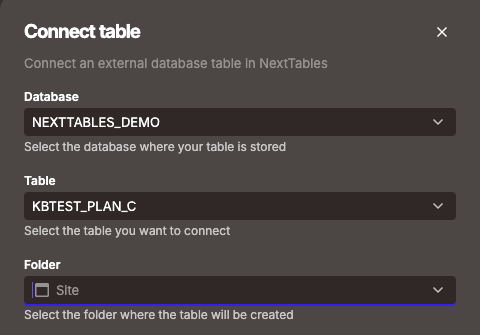
The table can now be read and edited in NextTables. Because the table has a primary key, NextTables uses it to identify each row, and the panel asks for no key columns. A table connected this way starts with data history already turned off, so there is nothing to change in its settings.
2) Give the Open SQL user read access to the source
The procedure reads your source data with the rights of the Open SQL database user that owns it, while the task chain starts it on behalf of the space. That user can read views of the space that are exposed for consumption, and it must be allowed to pass that read access on. Without the grant option, every run stops with error 258 (insufficient privilege).
- In the Data Builder, open the view that delivers the data to load (in the example
V_PLAN_SOURCE), switch on Expose for Consumption, and deploy the view. - Open Space Management, select your space and click Edit.
- Go to Database Access → Database Users, select the Open SQL database user and click Edit Privileges.
- Switch on Enable Read Access (SQL) and, below it, With Grant Option. Save. Changes in this section take effect immediately.
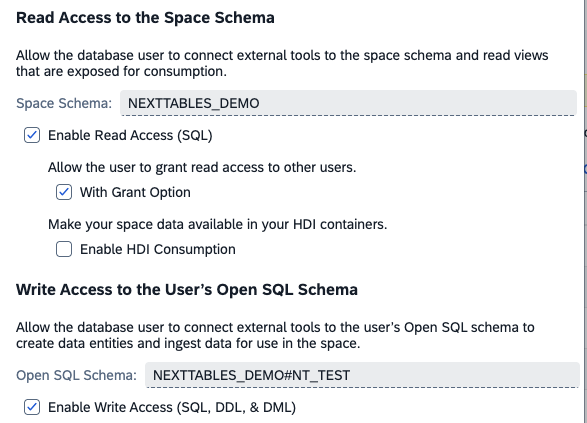
⚠️ Caution: With these settings, this user can read every view of the space that is exposed for consumption and can grant that read access to other database users. It is the same user NextTables connects with, so check with the owner of the space that this is acceptable.
3) Create the load procedure
In the SAP HANA Database Explorer, signed in as the Open SQL database user, create a procedure that merges the source into the target table. The MERGE statement matches rows on the business keys: it updates the rows that already exist and inserts the ones that do not.
Path A: table created in NextTables
CREATE PROCEDURE "SALES#NEXTTABLES"."LOAD_PLAN_DATA"
  LANGUAGE SQLSCRIPT
  SQL SECURITY DEFINER
AS
BEGIN
  MERGE INTO "SALES#NEXTTABLES"."PLAN_DATA" AS T
  USING "SALES"."V_PLAN_SOURCE" AS S
    ON  T.COMPANY_CODE  = S.COMPANY_CODE
    AND T.FISCAL_PERIOD = S.FISCAL_PERIOD
    AND T.ACCOUNT       = S.ACCOUNT
  WHEN MATCHED THEN
    UPDATE SET T.AMOUNT = S.AMOUNT
  WHEN NOT MATCHED THEN
    INSERT (NEXTHUB_ID, COMPANY_CODE, FISCAL_PERIOD, ACCOUNT, AMOUNT)
    VALUES (S.COMPANY_CODE || '|' || S.FISCAL_PERIOD || '|' || S.ACCOUNT,
            S.COMPANY_CODE, S.FISCAL_PERIOD, S.ACCOUNT, S.AMOUNT);
END;
Rows that already exist keep their NEXTHUB_ID, including rows that users created in NextTables. Only new rows receive an ID, built here from the business keys. The NEXTHUB_ID column is mandatory, has no default value and holds up to 255 characters, so the key columns of new rows must never be empty (NULL).
Path B: table created with SQL
Use the same procedure without NEXTHUB_ID. The table has no such column, and the primary key does the identification:
  WHEN NOT MATCHED THEN
    INSERT (COMPANY_CODE, FISCAL_PERIOD, ACCOUNT, AMOUNT)
    VALUES (S.COMPANY_CODE, S.FISCAL_PERIOD, S.ACCOUNT, S.AMOUNT);
In both paths, list under UPDATE SET only the columns that Datasphere owns. In the example, users maintain COMMENT in NextTables, so the procedure leaves it untouched. The source must deliver each key combination only once.
Name the columns of the target table as they appear in the Open SQL schema. For a table created in NextTables, these technical names can differ from the names shown in NextTables: spaces become underscores, and names may be converted to uppercase.
💡 Tip: If the transformation is extensive, or you want delta loads, model it in a transformation flow that writes to a local table of the space, expose a view on that table, and let the procedure merge from that view. A transformation flow cannot write to the Open SQL schema directly.
4) Allow the space to run the procedure
The task chain runs in the space, so the space needs the EXECUTE privilege on the Open SQL schema. Only the Open SQL database user can grant it.
- In Space Management, under Database Access → Database Users, select the Open SQL database user and click Open Database Explorer.
- In the SQL console, run:
CALL "DWC_GLOBAL"."GRANT_PRIVILEGE_TO_SPACE"(
  OPERATION   => 'GRANT',
  PRIVILEGE   => 'EXECUTE',
  SCHEMA_NAME => 'SALES#NEXTTABLES',
  OBJECT_NAME => '',
  SPACE_ID    => 'SALES');
The procedure writes with the rights of the Open SQL database user that owns it, so the space needs no write privileges on the table itself. To remove the privilege later, run the same call with OPERATION => 'REVOKE'.
5) Run the procedure in a task chain
- In the Data Builder, create a new Task Chain.
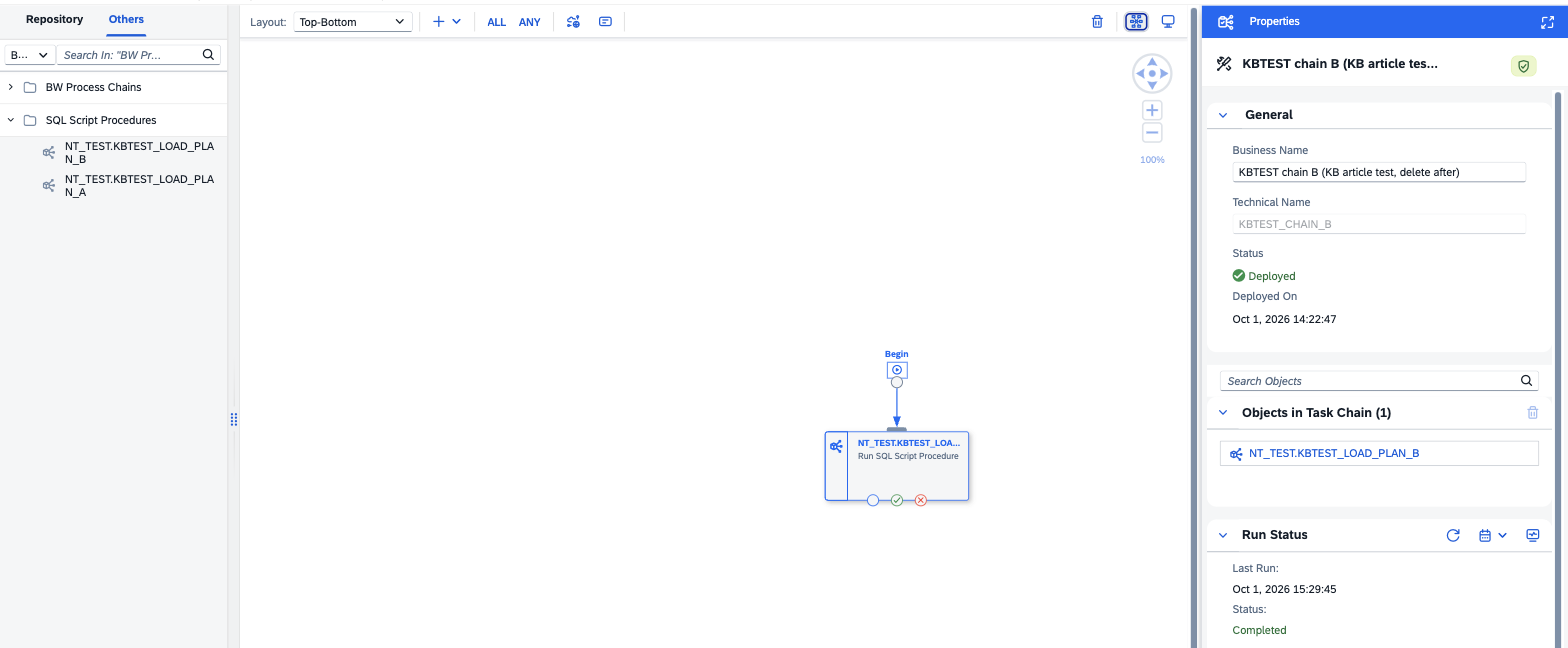
- In the left panel, open the Others tab and the SQL Script Procedures folder. Procedures are listed with the database user's name in front, in the example
NEXTTABLES.LOAD_PLAN_DATA. Drag the procedure onto the canvas, where it appears as a Run SQL Script Procedure task. - Place other steps in front of it if the load depends on them, for example a replication that fills the source.
- Save and deploy the task chain.
- Schedule the task chain, or run it manually. Each run of the procedure is listed with the task chain in the Data Integration Monitor, including the error code if it fails.
After the run, the rows appear in NextTables. Values that users entered stay in place:
📝 Note: Procedure parameters must use simple data types: text, numbers, Boolean, and date or time. A procedure with any other parameter type does not appear in the SQL Script Procedures folder. For details, see SAP's Run Open SQL Procedures in a Task Chain.
Why this article does not use a data flow
A data flow can write to a table in the Open SQL schema, but it writes whole rows. Every column of the target table that the data flow does not map is set to empty on each row it writes. In the scenario of this article, users add values in NextTables to rows that Datasphere fills, for example comments on actuals that are reloaded every night. A data flow would empty those columns on every run.
Use the procedure for this scenario. Its MERGE updates only the columns listed under UPDATE SET, keeps the NEXTHUB_ID of every existing row, and leaves everything that users maintain untouched. SAP also recommends replication flows and transformation flows over data flows, and a transformation flow cannot write to the Open SQL schema.
Troubleshooting / FAQs
1. The procedure does not appear in the SQL Script Procedures folder of the task chain.
The space has no EXECUTE privilege on the Open SQL schema yet, so run step 4. If the privilege is in place, check the parameters of the procedure: a procedure with an unsupported parameter type is left out of the list without a message.
2. The task chain run fails with FAIL_CONSENT_NOT_AVAILABLE.
The user who runs the task chain has not given SAP Datasphere consent to run tasks on their behalf. Give it in your profile settings under Authorized Consent Settings and run the chain again. The same applies when the consent has expired after 365 days.
3. The procedure stops with error code 258 (insufficient privilege).
The Open SQL database user cannot pass on its read access to the source view. Check that the view has Expose for Consumption switched on and is deployed, and that both Enable Read Access (SQL) and With Grant Option are on for the database user (step 2).
4. Path A: the run fails with a NULL value or a primary key violation on NEXTHUB_ID.
New rows receive no ID, or an ID that already exists. Check the expression that builds the ID, and check whether any key column of the source is empty.
5. The run fails on duplicate keys.
The source delivers the same key combination more than once. Aggregate or filter it in the view, so that each key combination appears once.
6. Values that users entered in NextTables are overwritten by the load.
The procedure updates that column. Remove it from UPDATE SET, so the procedure only writes the columns Datasphere owns.