
You will learn
How a typical data maintenance application in NextTables is designed end to end: a domain folder structure, four role archetypes, its own master data for validation, a row-level security model that scopes data to the right user, and (optionally) a folder-scoped database connection. This is a recommended best-practice pattern, not a one-off setup. The same shape applies to ESG, HR, Finance, Supply Chain, and any other domain where business users maintain their own data on top of an enterprise data platform.
We walk through the pattern using an ESG data collection app as the example, because it touches every layer (validation, row-level access, multi-user collaboration) in one realistic scenario.
📝 Note: NextTables does not ship a default folder structure, role set, or RLSO. The site-level Administrator is the only built-in role. Everything in this article, the folder split, the four roles, the master data and the RLSO, is a recommended pattern, not enforced structure. You are free to design differently; the four-role archetype is simply the shape that scales best across most data maintenance apps we have seen. For the underlying concepts and the four-layer authorization model, read Introduction to Authorization in NextTables: Roles, Folder Scoping, and Row-Level Security first.
The pattern
A data maintenance app in NextTables typically combines:
- A domain folder hierarchy that separates controlled key-user content (validation lists, access control) from high-volume transactional content.
- Four role archetypes as a starting point (Admin, Key User Maintainer, Maintainer, Viewer), scoped at the right folder level. You can add more roles for larger apps. The archetype just names the four functions that almost every data maintenance app needs.
- Master data objects for everything that needs a controlled list of values, including, where appropriate, the list of users themselves.
- A Row-Level Security Object (RLSO) that refines who can read or write which rows of the transactional table, based on a control table.
- (Optional) A strict master data list on the period column (e.g. Calendar Month) to lock closed periods for everyone at once.
- (Optional) A folder-scoped database connection, when the underlying schema should stay reachable only from apps in the same domain.
The ESG example
We will apply the pattern to a concrete app: the ESG team collects monthly emissions data from every subsidiary in the group. The app needs to:
- Validate every entry against a controlled list of emissions types (electricity, natural gas, refrigerants, diesel fleet, …).
- Let each subsidiary maintain its own data, a subsidiary maintainer can only enter and update rows for the subsidiaries they are responsible for.
- Give ESG analysts a read view across the whole dataset for group reporting.
- Stay governed by IT or the ESG data product owner, who own the folder, table, and app structure.
- Lock past reporting periods, once a month is closed for group reporting, subsidiaries can no longer edit rows for that period.
This maps to one domain folder hierarchy, four roles, two master data objects (emissions types and users), one transactional table, one RLSO, and (optionally) one folder-scoped database connection and one period-lock master data for closing past months.
Prerequisites
- Site-level permissions: Manage roles, Manage row level security, Manage masterdata, and (if you will scope the connection) Manage databases, plus the Create folder and Edit folder actions at site level.
- A write-enabled connected database to hold the transactional schema (for example Databricks, PostgreSQL, SAP Datasphere), or write-enabled tables created directly in NextTables.
- Familiarity with Introduction to Authorization in NextTables: Roles, Folder Scoping, and Row-Level Security.
- The list of ESG users and which subsidiary each one is responsible for.
💡 Tip: Decide up front who owns the ESG Admin role. This is the most powerful role in the worked example (usually IT or the ESG data product owner), and it should stay with a small group.
Step-by-Step Instructions
1) Map the four role archetypes to your ESG personas
Start by mapping each business persona to a role, a folder scope, and a permission archetype. The four ESG-specific roles below sit underneath the site-level Administrator and delegate ownership of the ESG domain, keeping tenant-wide rights at the site level. The same four-archetype mapping applies to any other domain (HR, Finance, Supply Chain).
This step is planning only. You build the folders, roles, and tables in the steps that follow.
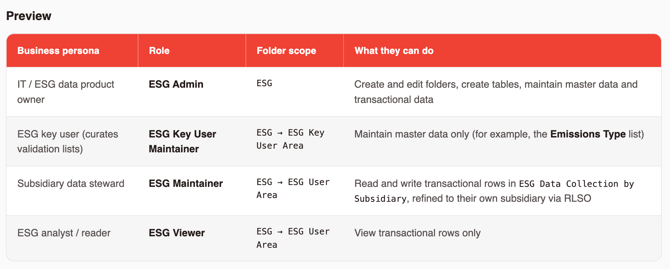
📝 Note: A single user can hold more than one role. A key user who must also enter transactional data is given ESG Key User Maintainer and ESG Maintainer. The two roles compose cleanly because they are scoped to different subfolders.
2) Design the ESG folder structure
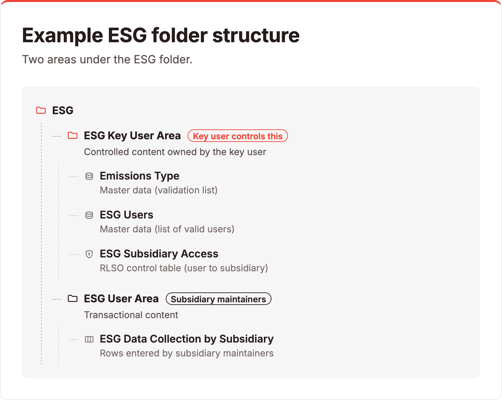
Create one domain folder with two purpose-built subfolders. The subfolder split is what makes the four-role model possible: each role gets exactly the scope it needs.
- Folders are created directly in the workspace tree. In the sidebar tree, open the context menu and choose Create folder... to create the top-level folder ESG.
- Inside ESG, create ESG Key User Area for controlled, low-volume content (master data, the RLSO control table).
- Inside ESG, create ESG User Area for the high-volume transactional table that subsidiary maintainers write to.
💡 Tip: In tenants that mirror the environments of your data platform, keep the top level for environment roots (Development, Test/QA, Production) and nest the domain folder inside each one, for example Production/ESG/ESG Key User Area. Connections, roles, and RLSO then stay scoped to one environment, and you can repeat the same ESG structure per environment. See Introduction to Authorization in NextTables: Roles, Folder Scoping, and Row-Level Security.
The resulting hierarchy:
3) (Optional) Scope the ESG database connection to the ESG folder
If the underlying database connection is sensitive (for example, the schema you write back to should only be reachable from ESG apps), restrict it to the ESG folder.
- Open Administration → Databases and select the ESG connection.
- Change Mapped folders from Site (all folders) to ESG.
- Confirm the save. Sub-folders are included automatically.
For the click-by-click flow and the rules around narrowing scope when applications already depend on the connection, see Scoping Database Connections to Folders.
⚠️ Caution: Anyone with the site-level Manage databases permission can widen Mapped folders back to Site (all folders). Keep this permission with a small group of admins.
4) Create the ESG Admin role
Build the roles before the tables. Roles in NextTables are scoped to folders, not to specific tables, so the roles will automatically apply to every table you create inside the relevant subfolder later on.
- Open Administration → Roles, click Add role, and name it ESG Admin.
- Description: Can create Data Entry Apps and maintain data.
- Object: select the ESG folder.
- Actions: enable All actions to give this role full control of the ESG domain (folders, tables, and data).
This role delegates ownership of the entire ESG domain to IT or the data product owner, keeping site-wide rights at the tenant level.
📝 Note: Action sets can be tightened further if you want a narrower ESG Admin. For example, allow Edit table while keeping Create table disabled.
5) Create the ESG Key User Maintainer role
- Add a role named ESG Key User Maintainer.
- Object: ESG → ESG Key User Area only.
- Actions: enable the actions needed to maintain master data and tables inside the Key User Area (View data, Add data, Edit data, Delete data).
Because the role is scoped to ESG Key User Area, the key user can curate every controlled artifact (the Emissions Type master data, the ESG Users master data, and the ESG Subsidiary Access control table). Transactional rows in ESG Data Collection by Subsidiary stay with the ESG Maintainer role.
💡 Tip: If a key user also needs to enter transactional data for their own subsidiary, give them ESG Key User Maintainer and ESG Maintainer. Roles compose. The two scopes simply add together.
6) Create the ESG Maintainer role
- Add a role named ESG Maintainer.
- Description: Can maintain data in ESG tables.
- Object: ESG → ESG User Area.
- Actions: enable read and write on transactional rows (View data, Add data, Edit data, Delete data). Keep Create table, Delete table, Create folder, and Edit folder disabled.
At this point every maintainer will be able to see and edit every row across all subsidiaries once the transactional table exists. We will narrow that down with an RLSO further on.
7) Create the ESG Viewer role
- Add a role named ESG Viewer.
- Description: Can view entries in ESG tables.
- Object: ESG → ESG User Area.
- Actions: View data only.
This will allow the users to view the data in the ESG User Area Folder (and subfolders) only. No write access. To control which rows each user can see, we will use the Row Level Security (see Step 10).
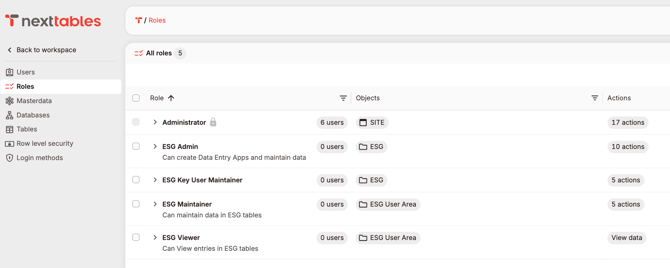
The Roles admin page with the four ESG roles (ESG Admin, ESG Key User Maintainer, ESG Maintainer, ESG Viewer) alongside the site-level Administrator.
8) Create the Emissions Type master data object
With the roles in place, build the controlled validation list. Hosting it as a master data object in the ESG Key User Area means only the ESG Key User Maintainer (and ESG Admin) can change it. Transactional maintainers select values from the list, while the key user is the only person who can add new ones.
- In ESG Key User Area, create a master data object Emissions Type.
- Add the initial entries, for example: Electricity (ET_01), Heating (ET_02), Office Materials (ET_03), Natural Gas (ET_04), Refrigerants (ET_05), Diesel - Fleet (ET_06).
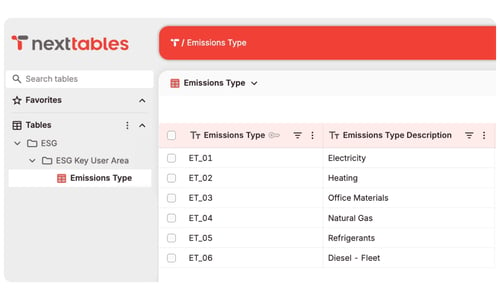
The Emissions Type master data object in ESG Key User Area, shown inside the ESG folder structure.
For the full setup, see How to Create and Use Master Data Objects in NextTables.
9) Create the ESG Users master data object
Managing users in a master data object, rather than as free-text emails in the control table, eliminates the most common source of RLSO bugs: typos, capitalization differences, and stale email addresses.
- In ESG Key User Area, create a master data object ESG Users.
- Add one entry per user, with at minimum a User email column that matches the user's NextTables login email exactly.
- Optionally add columns for Display name or Subsidiary group to make the list easier to maintain.
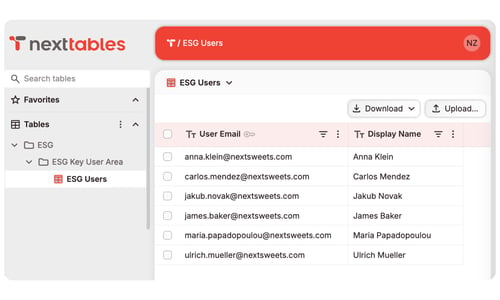
The ESG Users master data object with one entry per authorised ESG user, keyed by email.
💡 Tip: The ESG Users master data becomes the single source of truth for who is allowed to maintain ESG data. When someone joins or leaves, you update one place. The control tables that reference it pick up the change automatically.
10) Create the ESG Subsidiary Access control table
The RLSO needs a control table that says “user X is responsible for subsidiary Y”. Host it in ESG Key User Area so the ESG Key User Maintainer owns it, the same person who curates the rest of the controlled content.
Create it as a write-enabled table locally in NextTables, inside ESG Key User Area, so the ESG Key User Maintainer owns and updates it as part of the business process.
📝 Note: if the access list is already maintained centrally, for example in an HR system or a governed data product, you can instead consume it read-only from a connected source such as SAP Datasphere, Databricks, or PostgreSQL, and NextTables will mirror it.
In ESG Key User Area, create the ESG Subsidiary Access table with at minimum these columns:
- User email: the user's NextTables login email, lowercase and trimmed — the match against the signed-in user is exact and case-sensitive, and NextTables stores login emails lowercased. Validated against the ESG Users master data from step 9.
- Subsidiary code: the subsidiary identifier that will exist in
ESG Data Collection by Subsidiary(for example,BC7103,BN4230,JB3412). - Action scope:
read,write, orall— lowercase, the match is exact. Only needed if you want separate read and write rules in the same table.
Use User email and Subsidiary code together as a composite key. Populate one row per user/subsidiary pair: a user responsible for two subsidiaries gets two rows, and a subsidiary maintained by two users gets two rows.
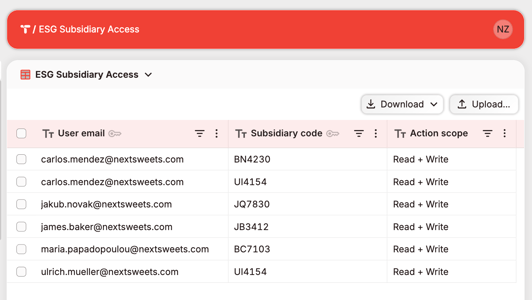
The ESG Subsidiary Access control table with User email and Subsidiary code as a composite key, and an Action scope column defining Read / Write / Read + Write per row.
11) Create the ESG Data Collection by Subsidiary transactional table
This is the table the subsidiary maintainers will write to. Create it last, after the roles and all the controlled content above are in place.
- In ESG User Area, create a write-enabled table ESG Data Collection by Subsidiary.
- Suggested columns (mirroring the worked example): Subsidiary, Calendar Month, Emissions Type, Direct?, Renewable?, Co2e in t.
- Configure the Emissions Type column to validate against the Emissions Type master data from step 8.
- If you scoped the database connection in step 3, create the table inside that connection so the folder scope is enforced end-to-end.
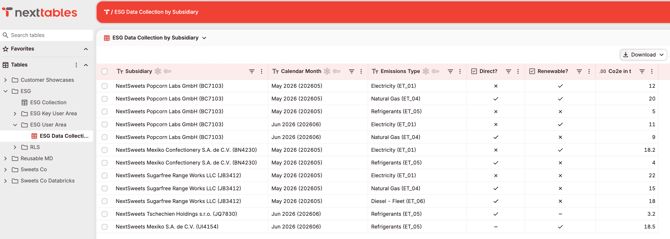
ESG Data Collection by Subsidiary in grid view, showing monthly emissions rows across multiple subsidiaries.
12) (Optional) Lock past periods with a strict master data validation
If every subsidiary shares the same "open" period (for example, only the current month is editable across the whole group), you can enforce that limit at data entry without extending the RLSO.
- In ESG Key User Area, create a helper table Calendar Month Lock with columns CALMONTH (Text) and Locked? (Boolean).
- Populate one row per month and set Locked? to true for every closed month.
- Go to the Settings of that table and filter on Locked == true.
- Create a master data object based on that filtered table, with Strict search enabled and Minimum search characters set to 0 (the default is 3; 0 makes the dropdown load the full list of open months when opened).
- Set the Calendar Month column of ESG Data Collection by Subsidiary to validate against this master data.
Closing a month becomes an admin action on the lock table.
📝 Note: To change which months are locked, the ESG Key User Maintainer opens the Calendar Month Lock view, temporarily disables the view filter, updates the Locked? flag on the affected months, then re-enables the filter.
💡 Tip: Use this pattern when the open period is the same for every maintainer. If the open period differs per user or role, use the RLSO write-scope approach in the next step instead. The two can also coexist.
13) Apply subsidiary-level row-level security
Applying row-level security is a two-step flow: first create the object in administration, then connect it to the transactional table.
a) Create the RLSO: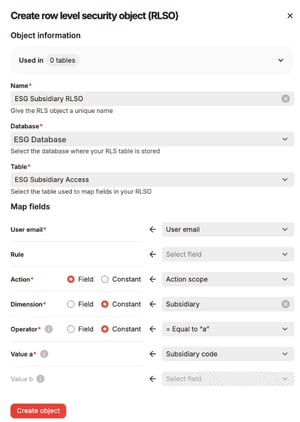
- Open Administration → Row level security and click Create object.
- Under Object information, name the object and select the database and table of the control table: ESG Subsidiary Access (from step 10).
- Under Map fields: map User email to the control table's User email column; map Action to the Action scope column (or set the Constant toggle to Read/Write/All if you skipped that column); set Dimension to a constant
Subsidiary; set Operator to the constant = Equal to “a”; map Value a to the Subsidiary code column. - Save.
b) Connect it to the transactional table:
- Open
ESG Data Collection by Subsidiary(in ESG User Area), go to View settings → Row level security, and click Connect object. - In Dimension mapping, map the
Subsidiarydimension to the table's Subsidiary field. - Click Save settings.
From now on the RLSO applies to every user who opens the table; who sees which rows is governed entirely by the rows in ESG Subsidiary Access. A user without any row in the access table sees no rows.
The Create row level security object side sheet, fully configured for the ESG example: the RLSO User email field mapped to the control table's User email column, the Action field mapped to Action scope, a constant Subsidiary dimension, = operator, and Subsidiary code as Value a.
For the click-by-click setup and advanced patterns (separate read and write rule sets, grouping rules with AND/OR), see How to Create and Use Row-Level Security Objects (RLSO) in NextTables.
💡 Tip: If maintainers should view the full year but only write to the current period, connect a second RLSO whose dimension is Calendar Month, with control-table rows carrying action write for the open months. Read and write scopes can differ on the same table.
14) Assign individual users to the roles
Assign each ESG user to the role(s) they need. A single user can hold more than one role. The scopes add together.
- Open Administration → Users, tick the user(s), click the Edit actions button, and choose Add roles to... to add roles on top of what the users already have — or Change roles to... to replace their full role set. Change roles replaces: whatever is selected in the picker becomes the user's complete role list, so keep existing roles ticked if you only mean to add one.
- For subsidiary maintainers, also add the user to the ESG Users master data (step 9) and add the matching
User → Subsidiaryrow(s) to ESG Subsidiary Access (step 10). The role grants access to the table; the control table grants access to the rows. - Keep the assignments documented (a simple NextTables view of ESG Users with the role column is enough) so onboarding and offboarding stay predictable.
15) Verify the setup
Before handing the app over to the ESG team, open ESG Data Collection by Subsidiary as each persona and confirm expected behavior.
| Open as… | Should see | Should be able to |
|---|---|---|
| ESG Admin | All folders and tables in ESG |
Create folders/tables, edit any row, maintain master data |
| ESG Key User Maintainer | Only ESG Key User Area content | Add/edit Emissions Type entries and the RLSO control table; cannot open transactional table |
| ESG Maintainer (subsidiary BC7103) | Only rows where Subsidiary = BC7103 |
Add and edit rows for BC7103; select only existing Emissions Type values |
| ESG Viewer | Rows granted by their control-table entries (operator All for full read) | Read rows in the transactional table |
Troubleshooting / FAQs
Q: An ESG Maintainer can see all subsidiaries. What went wrong?
A: The RLSO is not connected to the transactional table, or the user's control-table rows use operator All. Connect the object under the table's View settings → Row level security and check the user's rows in ESG Subsidiary Access, then have the user reopen the table.
Q: An ESG Maintainer sees no rows at all in ESG Data Collection by Subsidiary. What went wrong?
A: The RLSO cannot match the user to any subsidiary, so it returns an empty result set. Check, in order: the user is assigned to the ESG Maintainer role; the user exists in the ESG Users master data with the exact email used to sign in to NextTables; the user has at least one row in ESG Subsidiary Access mapping them to a subsidiary, with an Action scope of read or all (lowercase — the match is exact); and the RLSO is connected to the table under View settings → Row level security. Fix whichever step is missing, then have the user reopen the table.
Q: An ESG Maintainer sees rows for subsidiaries they should not have access to. What went wrong?
A: Either the user has extra user-to-subsidiary rows in ESG Subsidiary Access, or one of their rows uses operator All. Confirm both, then reopen the table. Because the ESG Subsidiary Access control table validates the User email column against the ESG Users master data, simple typos and case mismatches should not be possible.
Q: A maintainer cannot select an emissions type they expected to find. Why?
A: The value is missing from the Emissions Type master data. Ask the ESG Key User Maintainer to add the entry in ESG Key User Area → Emissions Type. Transactional maintainers cannot invent new emissions types themselves; that is by design.
Q: Can a single user be both a key user and a subsidiary maintainer?
A: Yes. Assign both ESG Key User Maintainer and ESG Maintainer. The scopes add together: the user maintains master data in ESG Key User Area and maintains their own subsidiary’s rows in ESG User Area.
Q: Should ESG Admin be merged with the site-level Administrator role?
A: No. Keep the site-level Administrator with a very small group of tenant admins, and delegate ESG ownership through ESG Admin at the folder level. That way other domains (HR, Finance) can use the same pattern without compromising tenant-wide control.
Q: Can we reuse this pattern for other domains?
A: Yes, that is the point. Replicate the folder shape (<Domain>/<Domain> Key User Area/, <Domain>/<Domain> User Area/) and the four-role archetype per domain. The RLSO control table changes per domain (subsidiary, cost centre, region, …) but the structure does not.
Q: Can maintainers view a full historical dataset but only write to the current period?
A: Yes. Connect a second RLSO whose dimension is Calendar Month (or your period dimension), with control-table rows carrying action write for the open periods. Read and write scopes can differ on the same table. See How to Create and Use Row-Level Security Objects (RLSO) in NextTables.