
📝 Availability: NextTables for SAP BW, Enterprise edition. This article documents a BAdI; BAdI support is an Enterprise feature.
You will learn
How to show a message to the user from any Table Maintenance BAdI exit, which message and visual types exist, what every field of CT_MESSAGES carries, and how to combine a message with E_SKIP so processing stops and the user is told why.
This article is for ABAP developers who already have a BAdI implementation and want it to talk back to the person editing the table.
Prerequisites
- A Table Maintenance BAdI implementation for your table. How to implement the table maintenance BAdI covers the enhancement spot, the implementing class and the filter values.
- ABAP development access on the BW system.
Where messages are available
Error handling is not a separate exit. Every exit method of the BAdI receives the changing parameter CT_MESSAGES, so you can raise a message from the Meta method, the Data method and the Update method alike. Append a line to that table and NextTables displays it.
📝 Note: A message tells the user something. It does not by itself stop anything. To stop processing you also set the exit's own control parameter, for example E_SKIP in the Data method, or you return an error entry in CT_VALIDATION in the Update method's validate step.
Message types
The message type sets the severity and the color NextTables uses:
Constant (/nly/cl_table_rest_v3=>) |
Value | Shown as |
|---|---|---|
co_msg_type_info | info | Neutral, no color |
co_msg_type_success | success | Green |
co_msg_type_warning | warning | Yellow |
co_msg_type_error | error | Red |
Visual types
The visual type decides how the message reaches the user. Two are available.
Modal
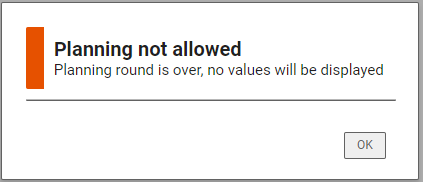
/nly/cl_table_rest_v3=>co_visu_type_modal opens a popup that the user has to acknowledge with OK. Use it when the message must not be missed, for example when the save was refused.
Toast
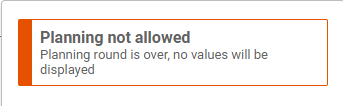
/nly/cl_table_rest_v3=>co_visu_type_toast shows a notification that disappears on its own, with no user interaction. Use it for confirmations and for information the user does not have to act on.
The CT_MESSAGES parameter
CT_MESSAGES is a table of type /NLY/TT_MESSAGE whose line type is /NLY/TS_MESSAGE. Each line is one message:
| Field | Type | Description | Possible values |
|---|---|---|---|
TYPE |
CHAR 30 | Message type, sets the severity and color | info, success, warning, error |
VISU_TYPE |
CHAR 30 | Visualization type, sets how the message is shown | modal, toast |
HDR |
STRING | Message header, the bold line at the top | Free text |
MSG |
STRING | Message body | Free text |
ADD_INFO |
STRING | Additional information. Reserved for internal use, leave it empty in your own code. | Not for customer use |
Always use the constants rather than the literal strings. The constants are checked at compile time, so a typo becomes a syntax error instead of a message that silently never appears.
Step-by-Step Instructions
1. Build a message
Fill a structure of type /NLY/TS_MESSAGE and append it to CT_MESSAGES:
DATA ls_message TYPE /nly/ts_message.

ls_message = VALUE #(
  hdr       = 'Title'
  msg       = 'Message'
  type      = /nly/cl_table_rest_v3=>co_msg_type_error
  visu_type = /nly/cl_table_rest_v3=>co_visu_type_modal ).

APPEND ls_message TO ct_messages.
2. Combine the message with a control parameter
A message on its own is information. This example refuses to display data in November: the Data method sets E_SKIP so no rows are read, and adds a toast that explains the empty grid. Without the message the user would see an empty table and no reason for it.
IF i_step = 1.
  IF sy-datum+4(2) = '11'.

    e_skip = 'X'.

    ct_messages = VALUE #( BASE ct_messages
      ( type      = /nly/cl_table_rest_v3=>co_msg_type_error
        visu_type = /nly/cl_table_rest_v3=>co_visu_type_toast
        hdr       = 'Planning not allowed'
        msg       = 'The planning round is over, no values will be displayed' ) ).

  ENDIF.
ENDIF.
3. Test both paths
Open the table in NextTables and trigger the condition, then trigger the normal case. A message that appears every time is usually a missing CHECK on I_STEP: the exits run in more than one step per action, so an unguarded APPEND produces the same message several times.
Troubleshooting / FAQs
1. My message never appears.
Check that you appended to CT_MESSAGES and did not overwrite it. CT_MESSAGES is a changing parameter that may already carry entries from standard processing, so assign with VALUE #( BASE ct_messages ... ) or use APPEND, never a plain ct_messages = VALUE #( ... ).
2. The same message appears several times for one action.
Each event runs in more than one step, and the validate and write events both call the exit. Guard the APPEND with a CHECK on I_TYPE and I_STEP so it runs in exactly one combination.
3. I raised an error message but the record was still saved.
The message type does not control the save. In the Update method, an entry in CT_VALIDATION with the error type is what blocks the write; in the Data method, E_SKIP is what stops the read. Set the control parameter as well as the message.
4. Which visual type should I use?
Use a modal when the user has to know that something did not happen, for example a refused save. Use a toast for confirmations and for context on something the user can see anyway. A modal for routine information becomes a click the user learns to dismiss without reading.