
📝 Availability: NextTables for SAP BW, Professional and Enterprise editions.
You will learn
What happens when several people have the same table open: who is shown, how a record being edited is protected from the others, when that protection is released, and which parts of it you can configure.
This article is for whoever configures tables that more than one person maintains.
Prerequisites
- A configured table. Table and column configuration in NextTables for SAP BW.
- Config admin rights to change the collaboration settings, or super admin rights for the system-wide setting. How object authorizations work in NextTables for SAP BW.
Who else is here
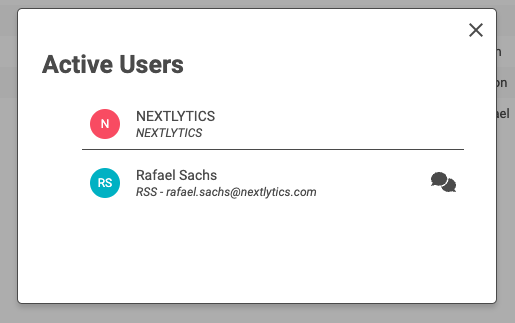
Every table has an active user list. A user appears in it by having the table open; they do not have to be editing anything. Up to five are shown at the bottom of the table as initials on a colored background, and the group icon opens the complete list.
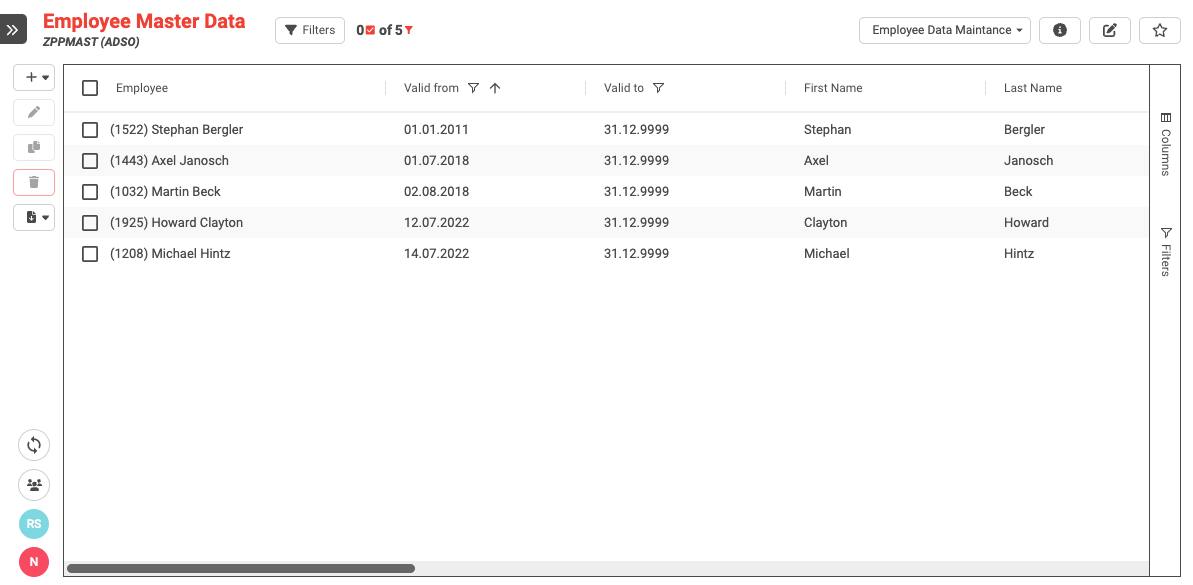
Clicking a user opens a team chat window or the preferred email program, so the list doubles as a way to ask the obvious question before two people start editing the same thing.
Record locking
Seeing who is present is half of it. The other half is that a record somebody is editing is locked for everyone else:
- Locked records are color-coded for the other users, so the state is visible before anyone tries.
- Selecting a locked record disables editing for that record. Every other function stays available.
- Changes are updated in real time for all users, so the others see the result rather than a stale row.
The whole sequence in motion, nineteen seconds:
📝 The lock is in NextTables, not in SAP BW. It applies to user input only and sets no lock in the BW system. Process chains and loading operations cannot be blocked by somebody leaving a table open, which is the usual worry when a locking mechanism is introduced.
When the lock is released
A lock does not survive somebody walking away, and it is not released silently either. After a short period of inactivity NextTables shows the editing user a popup asking whether they are still working on the record. If nobody answers it, the editing window is closed and the lock goes with it, so the record is free for the next person.
That sequence is worth knowing before you design around it: the person who walked away loses the editing window, not their turn, and the colleague waiting does not have to ask anyone to release anything.
What you can configure
| Setting | Scope |
|---|---|
| Collaboration on or off | The whole system, or one table |
| Contact type, which application a click on a user opens | System |
| Name display in the user list | System |
| Colors of the user list | System |
Switching it off for a single table is the setting worth knowing about. A table maintained by one department, or one where the presence of colleagues is not information anyone needs, does not have to carry the feature.
Step-by-Step Instructions
1. Decide where collaboration belongs
Leave it on for tables several people maintain. Consider switching it off per table where only one person ever edits, or where showing who is present would tell colleagues something the table's owner would rather not broadcast.
2. Set the contact type to something people use
The user list is only a communication channel if the click lands somewhere people read. Set the contact type to the tool your organization actually uses.
3. Tell people what the colors mean
A color-coded locked row is self-explanatory once, and confusing the first time. If a table is maintained by an occasional group rather than a daily one, a line in the table documentation saves the support call.
4. Do not build a process on the lock
The lock prevents two people overwriting each other in the moment. It is not an approval step, not a reservation, and it disappears after a short inactivity. Where a record has to stay reserved, model that as data, for example a status column maintained through the table, and read it in your own logic. How to control BW processes with parameter tables covers that pattern.
Troubleshooting / FAQs
1. A record is locked and nobody is editing it.
Wait rather than looking for a way to break it. After a short period of inactivity the editing user is asked by a popup whether they are still working; if they do not answer, their editing window closes and the lock is released.
2. Will a user with a table open block a process chain?
No. The lock applies to user input in NextTables and sets no lock in the BW system. Loads and chains are unaffected.
3. I can see a locked record but cannot edit it.
That is the mechanism working. Everything except editing that record stays available.
4. Only five users are shown.
Five is what fits at the bottom of the table. The group icon opens the full list.
5. Can I switch this off for one table?
Yes. Collaboration can be enabled or disabled for the whole system or per table.
6. Do other users see my change immediately?
Yes. Changes are updated in real time for everyone with the table open.