
📝 Availability: NextTables for SAP BW, Professional and Enterprise editions.
You will learn
Every setting in the table configuration of NextTables for SAP BW: the table properties, the column configuration with its basic and expert modes, the search settings, and the default scenarios. This is the reference the how-to articles point back to; read it when you need to know what a specific setting does.
Prerequisites
- A table (ADSO, DDIC table, InfoObject or alias table) already registered in NextTables. See How to configure a table in NextTables for SAP BW for the initial setup.
- Access to Settings → Configurations.
How the configuration is organized
To show and work with backend data in NextTables, the table or object has to be configured. Under Settings → Configurations you can search for an existing table configuration or add a new one by table type and table name:
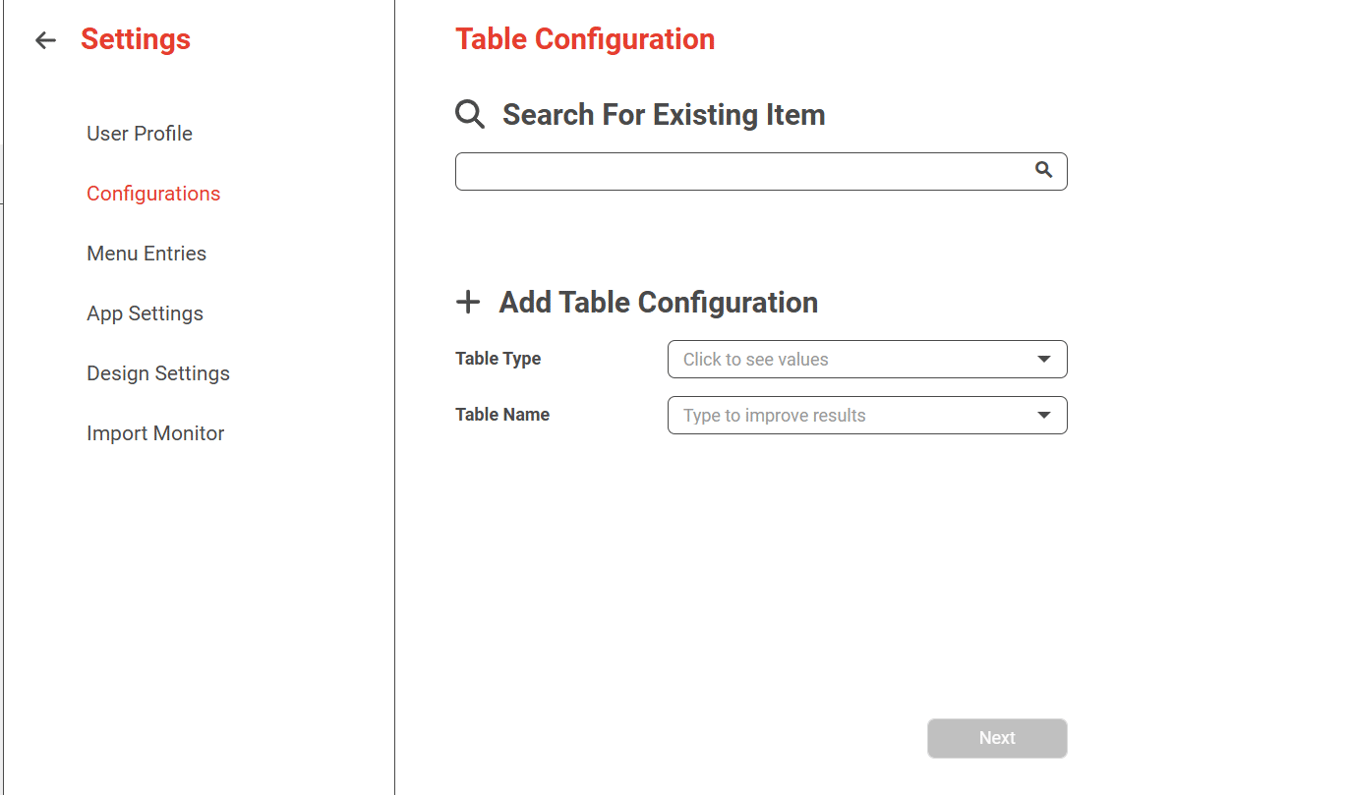
The header and subheader of an opened configuration show technical information about the table name and type. The configuration itself consists of two parts: properties, which are partially mandatory, and the column configuration, which is completely optional. When you add a new table, a default configuration for its table type is applied.
Properties
The properties section has input fields with value help and checkboxes that enable or disable table features:
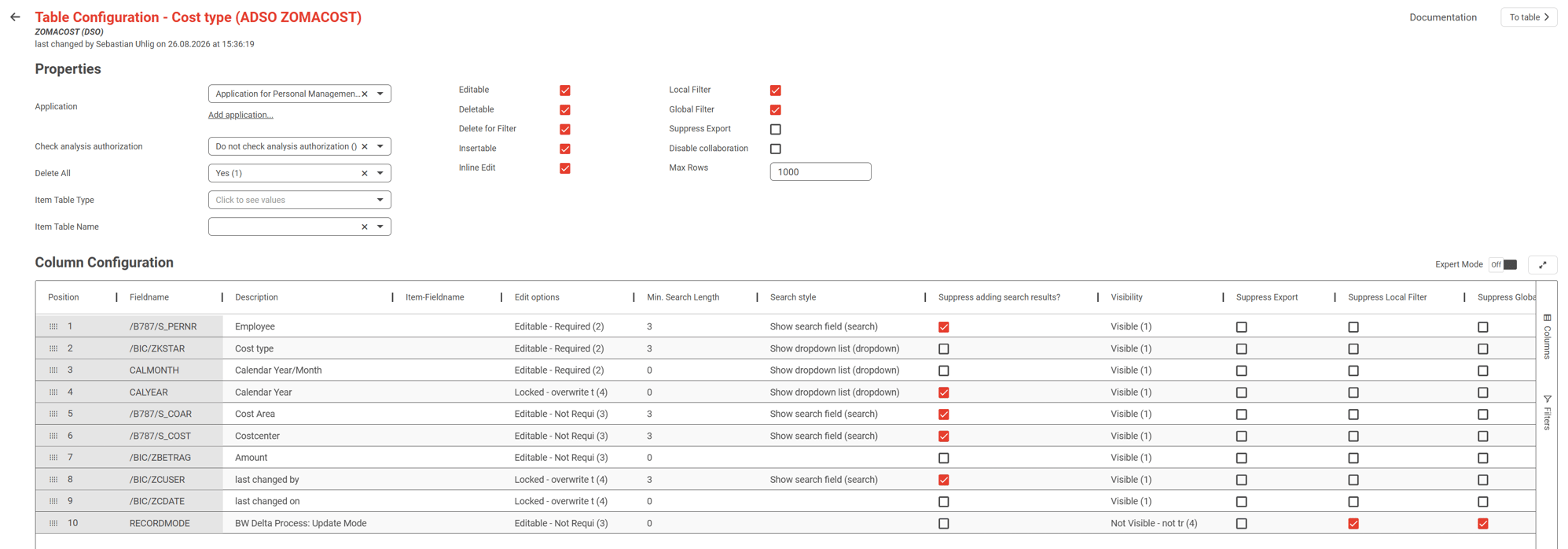
| Property | What it does | Notes |
|---|---|---|
| Application | Assigns the table to an existing or new application | Can stay blank. We recommend assigning an application; it makes the table easier to find and to authorize. |
| Check analysis authorization | Enables the analysis authorization check while reading data | |
| Delete All | Shows a "delete all" option in the submenu of the delete icon | Deletes all data from the table, including the change log of an ADSO. Use with caution; see the warning below. |
| Item Table Type | Technical type of the item (child) table linked to this master table | Master-item feature. Activates the master-item relationship at table level; required together with Item Table Name. |
| Item Table Name | Technical name of the item (child) table | The master-item link is only complete when Item Table Type and Item Table Name are both maintained. |
| Editable | Enables editing of existing data | Applies to editing existing data; creating new rows is governed by Insertable. |
| Deletable | Enables data deletion | |
| Delete for Filter | Shows a "delete by filter" option in the submenu of the delete icon | Deletes all data matching the global filter criteria, including data not currently displayed. |
| Insertable | Enables creating new rows with a new key | |
| Inline Edit | Enables editing directly in the grid | |
| Local Filter | Enables the local filter | The local filter only affects data already displayed in the table. |
| Global Filter | Enables the global filter | The global filter affects the data read request itself. |
| Suppress Export | Disables the export functions for the table | |
| Disable collaboration | Disables the collaboration feature for the table | Affects the visual cues for collaboration and the locking mechanism while editing. |
| Max Rows | Sets the maximum number of displayed rows | Ignored when a custom BAdI merges or separates the backend data rows. |
⚠️ Caution: Delete All removes the data and the change log of an ADSO in one action. If the change log is part of your audit trail, leave Delete All switched off. How to track changes in NextTables for SAP BW explains what the change log gives you.
Column configuration
The column configuration holds several options for every column of the table. By default it shows the most common options; switch on expert mode with the toggle on the right side to see all of them. There is also a full-screen mode for the configuration.
| Field | What it does | Mode | Options and notes |
|---|---|---|---|
| Position | Shows the current position of the column | Basic | Change it with inline editing or drag & drop. |
| Fieldname | Shows the technical name of the field | Basic | Cannot be changed. |
| Description | Shows the description of the field | Basic | Cannot be changed. |
| Item-Fieldname | Maps this master column to a field of the item table | Basic | Master-item feature only. This mapping is the join condition NextTables uses to translate the selected master row into restrictions for the item table. Without it, no join condition exists and filters cannot be applied to the item table. |
| Data Type: Frontend | Changes the frontend data type | Expert | Short text: one line (C) · Date (D) · Time (T) · Number (P) · Long text: text area (g) · Long text XXL (G) · File XXL (Y) · Timestamp (>) · HTML content (M) · Checkbox 'X'/'' /'-' (j) · Checkbox '1'/'2'/'' (J) · Scientific number (F) |
| Edit options | Determines how a field can be edited | Basic | Default · Locked: keep target value · Editable: required · Editable: not required · Locked: overwrite target value. A worked example of locking system-maintained columns is in How to call an external API to update data in NextTables for SAP BW. |
| Min. Search Length | Sets how many characters trigger the search | Basic | Only used with search style "search". At 0 the field behaves like a dropdown but refines the values with every additional character. |
| Search style | Determines how value help behaves | Basic | Show search field (search): searches while the user types · Show dropdown (dropdown): a limited list, typing does not trigger a new search · No search (nosearch): disables value help for the field. |
| Search Method | Determines which values the search suggests | Expert | All master data entries (SIDs) (1) · Master data entries with maintained text (2) · Text entries in the user language, ignoring master data (3) |
| Support adding search results | Restricts input to the values the search suggests | Basic | When active, only suggested values can be entered. Similar in effect to "Check data integrity", except that it validates against the search values, while "Check data integrity" validates against the master data. |
| Search Type | Determines which object type the search uses | Expert | Data Dictionary table and field (DDIC) · InfoObject (IOBJ) · Custom (CUSTOM) |
| Search help | Names the specific object used for the search | Expert | Enter the technical name of the object. |
| Visibility | Determines whether the field is visible | Basic | Default () · Visible (1) · Not visible, but still in the global filter (2) · Only visible in table view (3) · Not visible and not transferred to the frontend (4) |
| Suppress Export | Excludes the field from all exports | Basic | |
| Suppress Local Filter | Excludes the field from the local filter | Basic | |
| Suppress Global Filter | Excludes the field from the global filter | Basic | |
| Suppress group by | Excludes the field from the group-by function | Expert | |
| Check data integrity | Validates the field content against the master data of the underlying InfoObject | Expert | |
| Default Scenario | Fills the field automatically on save | Expert | Changelog (CHANGELOG): hidden from the input mask, written while saving · Auto-Increment-ID (AUTOINC): requires a number range object in the backend · Constant (CONSTANT): shown in the input mask when empty, written while saving · Constant overwriting (CONSTANTOV): shown in the input mask and written while saving. A worked example of the Changelog scenario is in How to track changes in NextTables for SAP BW. |
| Default Scenario Values | Sets the value the default scenario writes | Expert | Depends on the scenario: a string, any sy- field such as sy-uname, or a number range object. |
📝 Note: The master-item feature works without any BAdI implementation. Item Table Type and Item Table Name on the master table plus the Item-Fieldname mappings are all it needs. A Data BAdI is only required if you want to inspect or adjust the runtime structures; at runtime the master-item context is provided in C_QUERY_POST-PARENT_SELECT_OPTIONS, with the derived item restrictions in its MAPPINGS table (line type /NLY/TS_MAPPING).
Troubleshooting / FAQs
1. I cannot find the Default Scenario or Data Type fields in the column configuration.
They are expert-mode settings. Switch on the expert mode toggle on the right side of the column configuration.
2. Filters on the master table do not restrict the item table.
The Item-Fieldname mapping is missing. An item table defined only through Item Table Type and Item Table Name has no join condition; maintain Item-Fieldname on the master columns that correspond to item fields.
3. A locked column loses the value my BAdI wrote.
Check which lock you chose. Locked: keep target value is the variant where a backend-written value survives the save; see the geocoding article linked above for the pattern.
4. The table shows fewer rows than exist.
Check Max Rows in the properties. It caps the number of displayed rows.