
📝 Availability: NextTables for SAP BW, Professional and Enterprise editions.
You will learn
How to put a NextTables table inside a dashboard, so that a reader who spots wrong or missing data can correct it without leaving the report. The mechanism is a web page embedded in the dashboard, which means it works the same way in SAC stories, SAC analytic applications and Tableau.
This article is for whoever builds the dashboard.
The problem it solves
You open a dashboard and see that master data or plan data is wrong or missing. Correcting it normally means leaving the dashboard, opening NextTables, finding the object, finding the record, changing it, then coming back and refreshing. Embedding the table removes every step but the change itself.
Prerequisites
- A configured table with a menu entry in NextTables. Table and column configuration in NextTables for SAP BW.
- A dashboard tool that can embed a web page. SAC stories, SAC analytic applications and Tableau all can.
- The people using the dashboard need their normal NextTables authorizations. Embedding grants nothing. See How object authorizations work in NextTables for SAP BW.
Step-by-Step Instructions
1. Build the URL for the embedded view
Use the singular display type so the table arrives without the NextTables menu, which the dashboard does not need and which invites the reader to navigate away:
https://{yourdomain}/#/table/{table}/{table_type}/To open it already filtered on what the dashboard is showing, append the filter parameter. The whole syntax is in URL parameters for NextTables in SAP BW:
https://{yourdomain}/#/table/MY_ADSO/DSO/?filter=CALYEAR eq '2021'2. Add the page to the dashboard
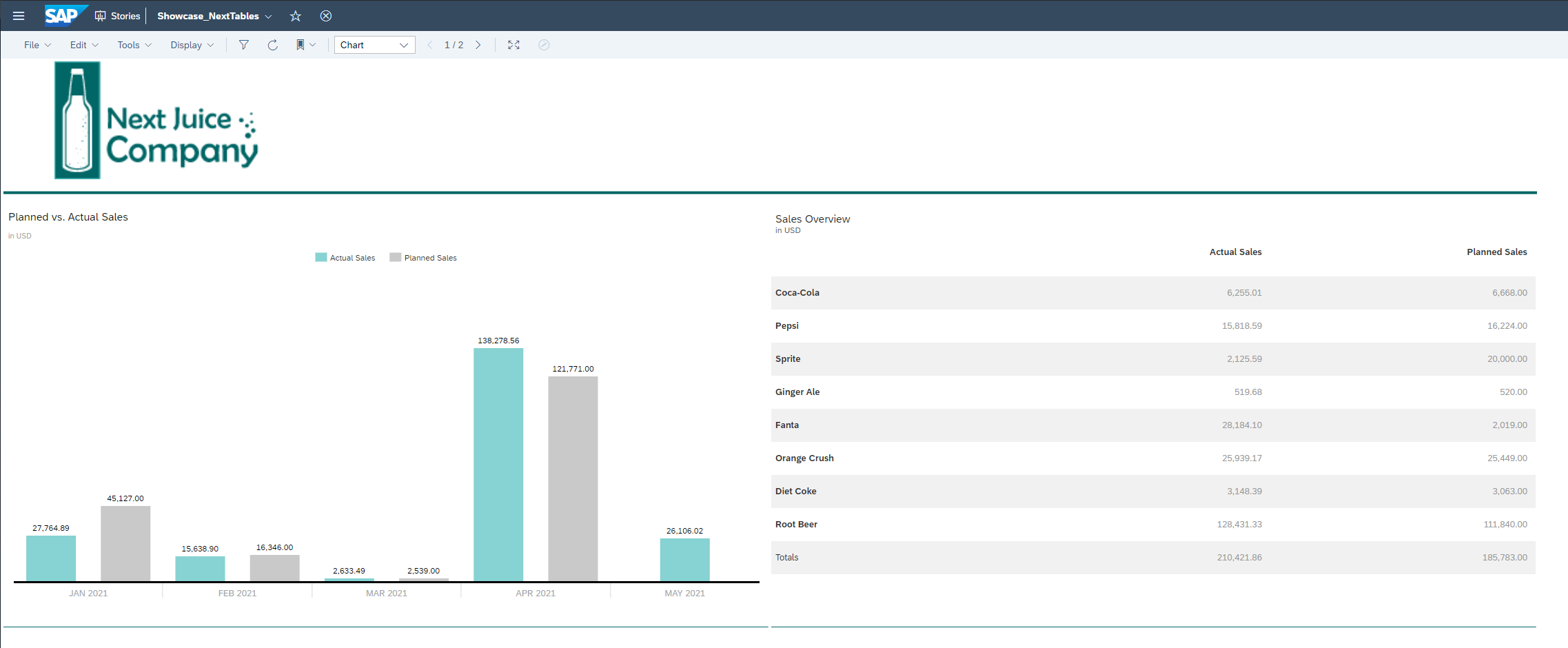
Place a web page component on a dashboard page and point it at that URL. In the example, a sales planning dashboard shows that the planning values for May are missing.
3. Put the table on its own page, or beside the chart
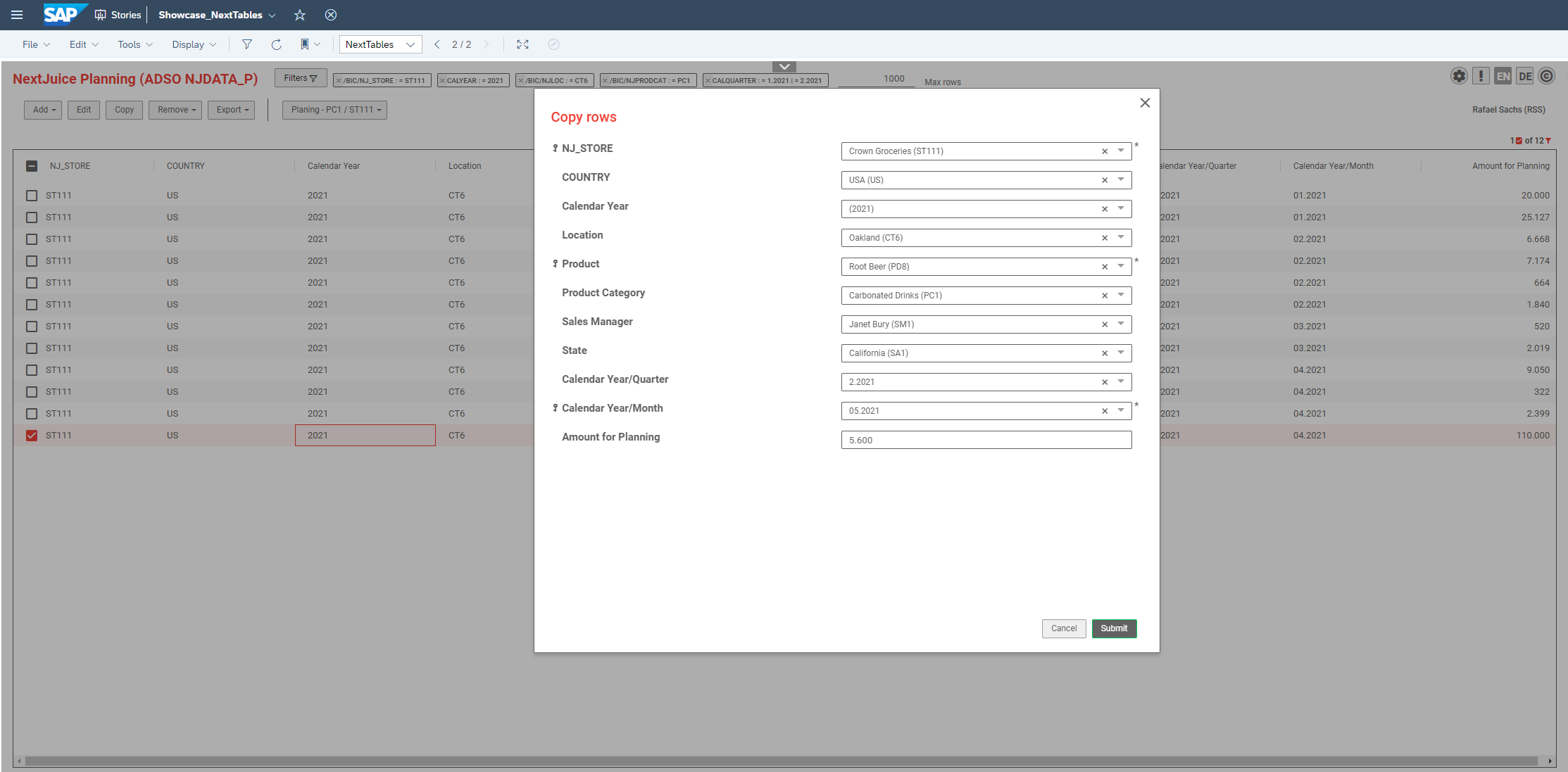
A second dashboard page holding the table keeps the reporting view uncluttered and gives the table enough width to be usable. The reader switches to it, adds the missing rows with Add or Copy, and saves.
4. Refresh the dashboard
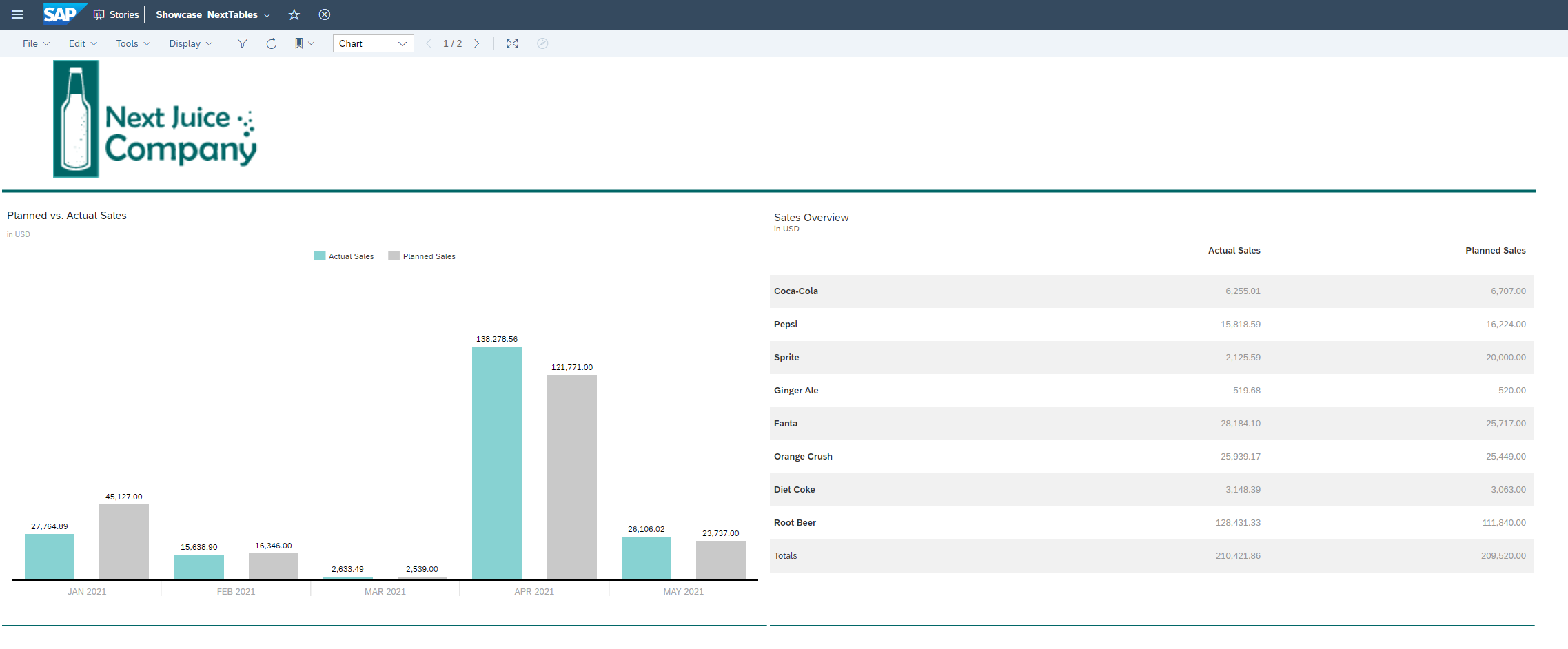
The write goes to the database immediately, but the dashboard keeps showing what it already loaded. Unless an automatic refresh is configured, refresh it by hand with the icon in the header.
5. Configure an automatic refresh
In the editor, click the Refresh icon and choose Configure Auto Refresh. Set the cycle in the dialog.
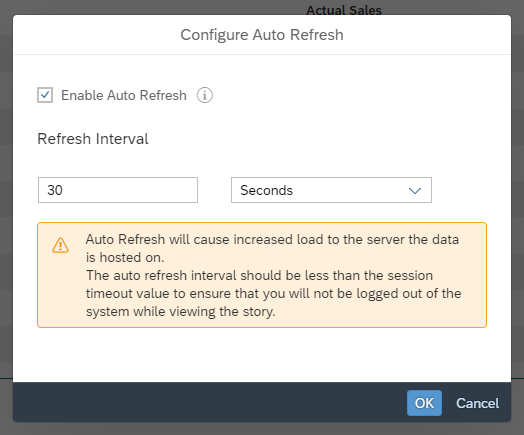
💡 An automatic refresh is worth configuring even at a long cycle. Without one, someone corrects a value, looks back at the chart, sees the old number and concludes the correction did not save.
Embedding, or jumping
Embedding is one of two ways to connect the dashboard to the table, and they suit different situations:
| Approach | Good for | How |
|---|---|---|
| Embed the table | Correcting data the reader is looking at, without losing the context. | A web page component pointing at the table display type. |
| Jump to the table | Occasional maintenance, or a table too wide to embed comfortably. | A link with the filter parameter, so the table opens on the selection the reader made. |
| Jump to the add form | Adding one row, such as a comment or a status, with the context prefilled. | See How to enter data through a standalone Add form in SAP BW. |
Troubleshooting / FAQs
1. The NextTables menu appears inside my dashboard.
You used the plural display type. table hides the menu, tables shows it.
2. The change I saved does not show in the chart.
The dashboard is serving what it loaded. Refresh it manually, or configure an automatic refresh.
3. The embedded table is not filtered to what the dashboard shows.
Add the filter parameter to the URL. Note that the reader can widen it in the global filter, so it presets a view rather than restricting one.
4. Some readers see the table and others see nothing.
Embedding grants no authorization. Each person needs the normal NextTables permissions for that application and table, and their analysis authorizations still decide which rows they see.
5. Does this work outside SAP Analytics Cloud?
Yes. Any tool that can embed a web page works the same way, Tableau included. Nothing in the mechanism is specific to one vendor.