
📝 Availability: NextTables for SAP BW, Professional and Enterprise editions.
You will learn
How to let someone write a row into SAP BW without opening a table: the add form, called from a dashboard, a report or a workflow, with part of the row already filled in by the calling application.
This article is for whoever connects NextTables to another tool.
What the add form is
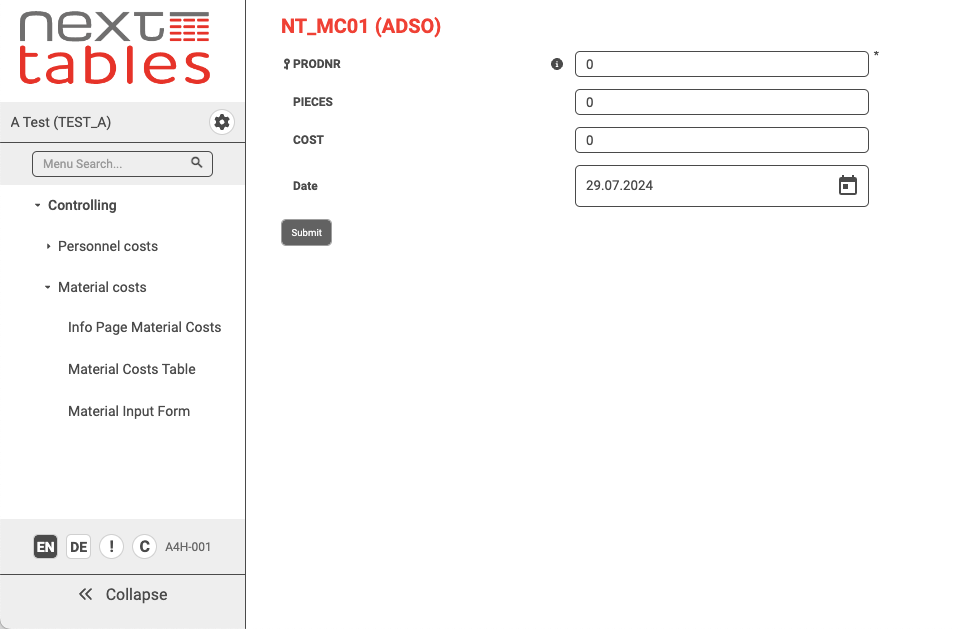
The add form is the new-entry dialog on its own, without the table behind it. It keeps everything the dialog has in the grid:
- Default values, determined when the form is called.
- The standard validation, which refuses incorrect entries.
- Converted field types, for example a checkbox instead of a flag field.
- Search help and dropdown lists.
- Custom validation, where you have written one.
What makes it useful outside NextTables is that field values can be handed to it in the URL. A jump from another program or dashboard can therefore supply values that the SAP back end does not have and could not derive, such as which dashboard the user came from.
Prerequisites
- A configured table to write into. Table and column configuration in NextTables for SAP BW.
- The technical field names of the fields you want to prefill.
- A calling application that can open a URL, which in practice is every dashboard tool.
Step-by-Step Instructions
1. Configure the table so the form is usable on its own
Everything the form shows comes from the table and column configuration. Two settings matter more here than in the grid, because there is no table to fall back on:
- Fields the caller supplies should be locked, so the value that arrives is the value that is stored.
- Fields the person has to fill should be editable and required, so the form refuses to save half a row.
See the Meta method reference for the editability states if you set them in code.
2. Build the URL
The form has two display types, the same distinction the table views use:
| Display type | Result |
|---|---|
adds | The form with the side menu. |
add | The form only. No navigation to another table or form. |
Use add for anything embedded. The structure is:
https://{yourdomain}/#/add/{table}/{table_type}/?default={FIELDNAME} eq '{VALUE}'Several fields are separated by semicolons, field names are technical names, and the form accepts the eq operator only. The full syntax, with InfoObject examples, is in URL parameters for NextTables in SAP BW.
⚠️ A default scenario or an Update BAdI overwrites the URL value. If a field is configured to be filled from SY-UNAME, passing a different user in the URL will not survive the save. Decide per field whether the caller or the system owns it, and do not set both.
3. Let the system fill what the system knows
Do not pass in the URL what NextTables can determine itself. The user and a timestamp come from the system; the calling context, such as which dashboard and which cell the comment belongs to, is what the URL is for. That division keeps the link short and keeps the stored data trustworthy.
4. Call it from the dashboard
Open the URL from an interaction in the calling tool, usually in a popup. The person fills the fields that were left empty, saves, and the row is written to the database immediately, where the same dashboard can read it back.
Two worked scenarios
A comment function
Many front-end tools have comments built in, but the comments are then tied to that dashboard or to one of its data sources, and getting them out again for further processing is awkward.
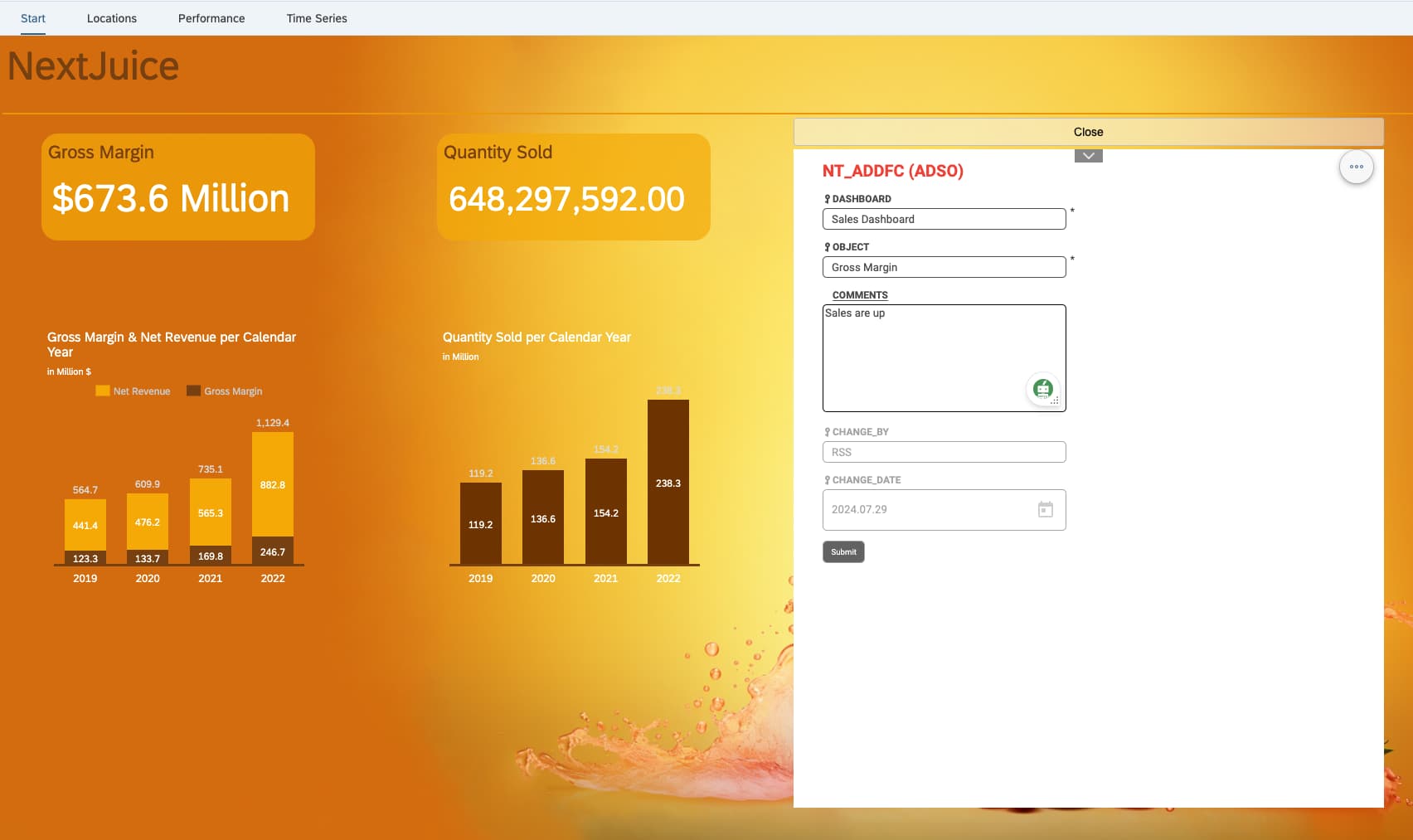
An add form puts them in SAP BW instead. A dashboard interaction opens a popup with the form. The user, the timestamp and any derived fields come from the system; the URL supplies which dashboard and which position the comment belongs to; the person types the comment. On save it is a row in an ADSO like any other, immediately available to reporting.
Process and planning coordination
Recurring processes such as a month-end or year-end close consist of parallel and consecutive tasks, and the usual complaint is that nobody can see how far the whole process has got.
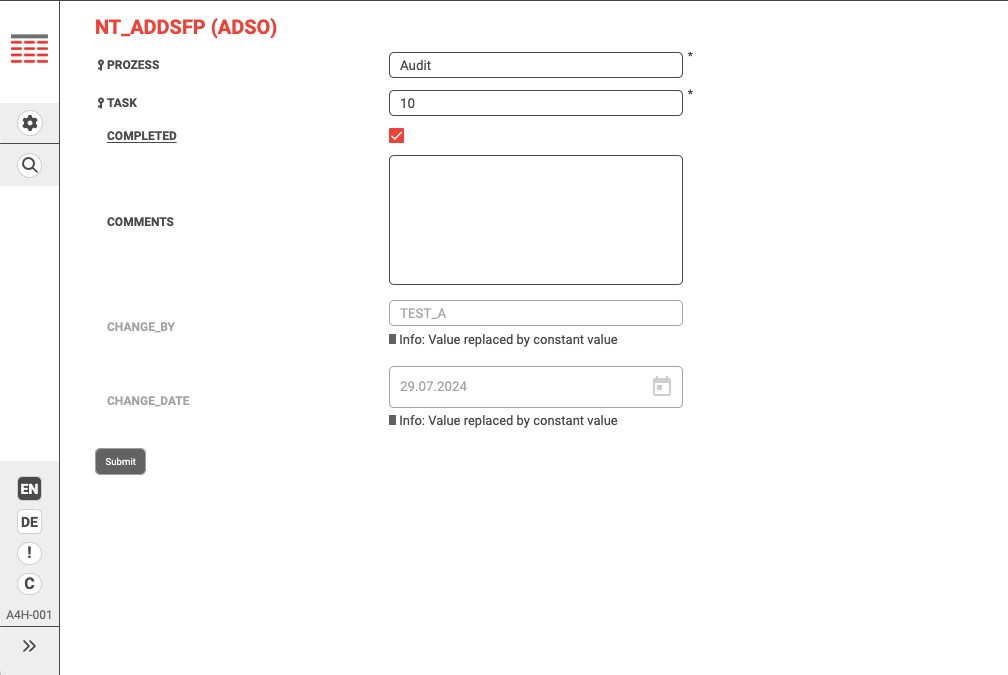
Here the form is not embedded but jumped to at the end of a task. The URL carries the current task; the system adds what it knows; the field that matters is a Completed checkbox. Ticking it and saving is the whole interaction. Dropdowns with predefined values and checkboxes do more work than free text in this scenario, because the point is a status that can be counted.
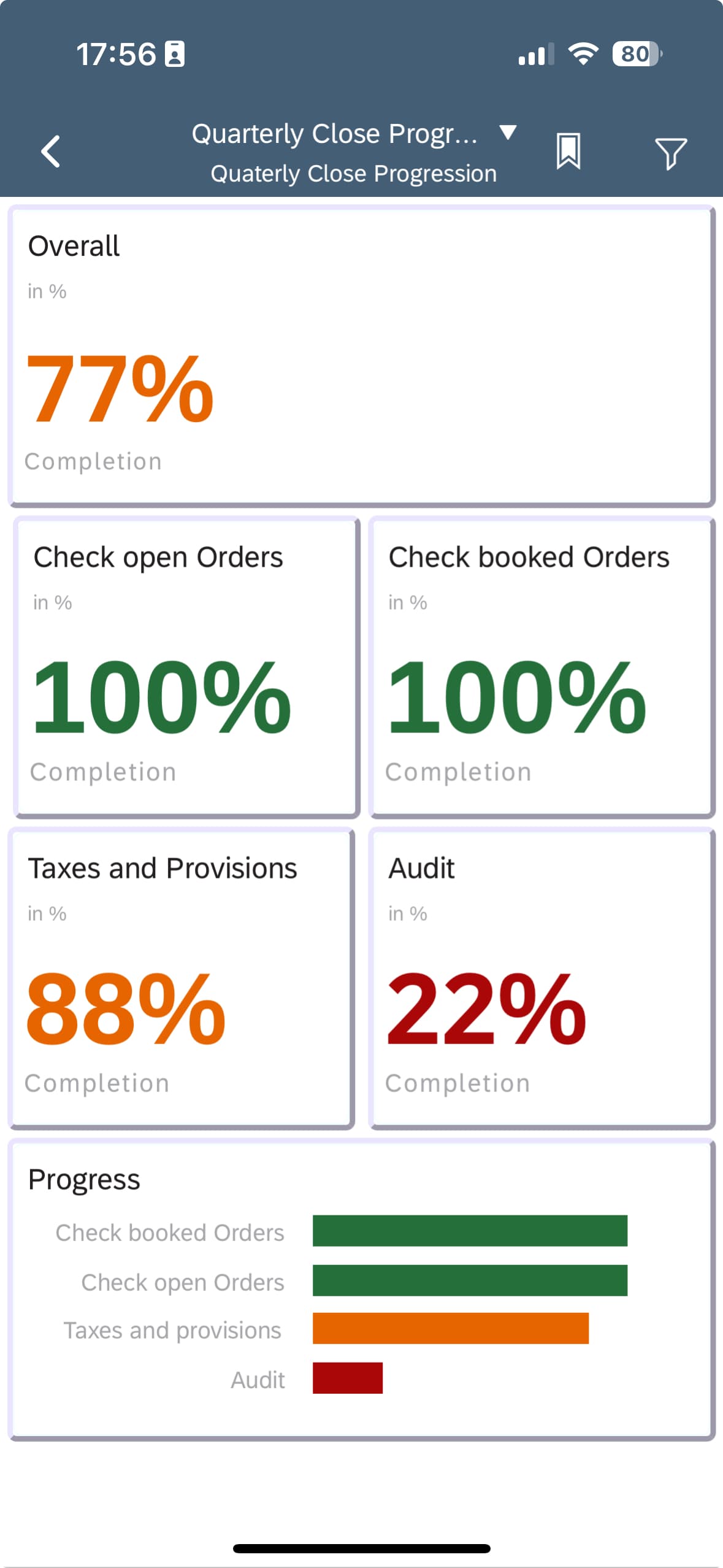
The stored rows then answer the original question. Because the data is in BW, the overview is an ordinary report, including on a phone.
Troubleshooting / FAQs
1. The side menu is visible in my popup.
You used adds. Use add for an embedded form.
2. My default value does not appear.
Check three things in order: the field name is the technical name, the operator is eq, and no default scenario or Update BAdI fills that field. The last one overwrites the URL silently.
3. The form saves rows with empty fields.
The fields are configured as editable and not required. Make them required so the form refuses to save until they are filled.
4. A user changed a value I passed in the URL.
The field is editable. Lock the fields the caller supplies; a URL value in an editable field is a suggestion, not a fact.
5. Can I use the form to edit an existing row?
No. It is the add dialog, so it creates rows. For editing, open the table, embedded if you want it without navigation. See How to embed a NextTables table in SAC or Tableau.