
📝 Availability: NextTables for SAP BW, Professional and Enterprise editions.
You will learn
How to make an SAP BW object editable in NextTables: choose the table type, find the object, check the configuration NextTables proposes, and open the finished table. The walkthrough uses an advanced DataStore object named ZOMACOST, and the steps are the same for every supported object type.
This article is for the person who sets tables up for other people, usually a BW administrator with config admin rights. It is the first thing you do with a new object, and every other article in this category assumes it is done.
What a table configuration is
A BW object stays invisible in NextTables until someone configures it. The configuration records which object NextTables reads, which application it belongs to, whether rows may be inserted, edited or deleted, and how each column behaves. NextTables derives most of it from the object itself, so a first configuration is usually a matter of checking the proposal and saving it.
A configuration is identified by the table type together with the table name, so one object carries one configuration. When two groups need different views of the same data, create an alias table instead of a second configuration: How to let two departments maintain one object with table aliases.
Prerequisites
| What you need | Detail |
|---|---|
| NextTables Professional or Enterprise | Configuring tables is part of both editions. |
| Config admin rights | Activity A on the authorization object /NLY/TBLS. See How object authorizations work in NextTables for SAP BW. |
| An active object of a supported type | A DDIC table, an advanced or classic DataStore object, or InfoObject attributes or texts. What each type allows is in Which objects NextTables for SAP BW can read and write. |
| An application to file the table under | Applications group tables and carry the authorizations. You can create one while configuring the table, with Add application... under the Application field. |
Step-by-Step Instructions
1) Open the table configuration
Go to Settings → Configurations. The screen is titled Table Configuration and has two halves: Search For Existing Item finds a configuration that already exists, and Add Table Configuration below it starts a new one. From an open table you can reach the same screen with the edit icon in the top right.
2) Choose the table type
The Table Type field decides which objects the search offers you, so it comes first. Six types are available:
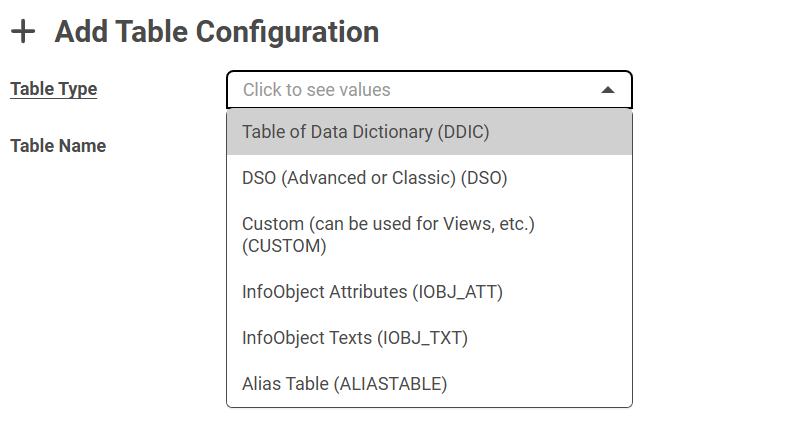
| Table type | Code | Use it for |
|---|---|---|
| Table of Data Dictionary | DDIC |
Transparent DDIC tables, including your own Z tables. |
| DSO (Advanced or Classic) | DSO |
Advanced DataStore objects and classic DataStore objects. |
| Custom (can be used for Views, etc.) | CUSTOM |
Objects that are not reached through the standard cases, such as views. |
| InfoObject Attributes | IOBJ_ATT |
The attributes of an InfoObject. |
| InfoObject Texts | IOBJ_TXT |
The texts of an InfoObject. |
| Alias Table | ALIASTABLE |
A second view of an object that is already configured. Two more fields appear for the type and name of the physical object behind the alias. |
These are the same values that the /NLY/TTYPE field of the authorization object uses, so the type you pick here is also the type you grant rights on.
3) Find the object
Type the beginning of the technical name into Table Name. The search matches on the start of the name and returns only active objects of the type you selected, each with its description in front of its technical name.
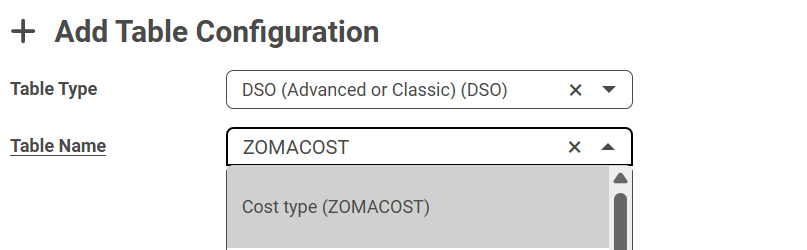
An empty result list almost always means the type is wrong or the object is not active in BW.
4) Select Next
For an object without a configuration, NextTables reads its fields and opens a proposed configuration.
For an object that is already configured, a warning appears first:
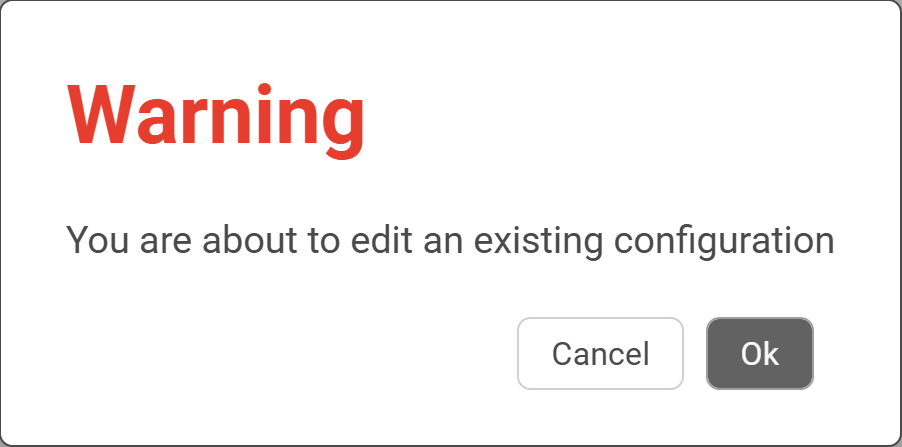
⚠️ Caution: Select Ok only when you mean to change the configuration that people are working with. Select Cancel if you were looking for a different object, and check the table type before you search again.
5) Check the proposal and save
The configuration screen carries the table properties at the top and the columns below.
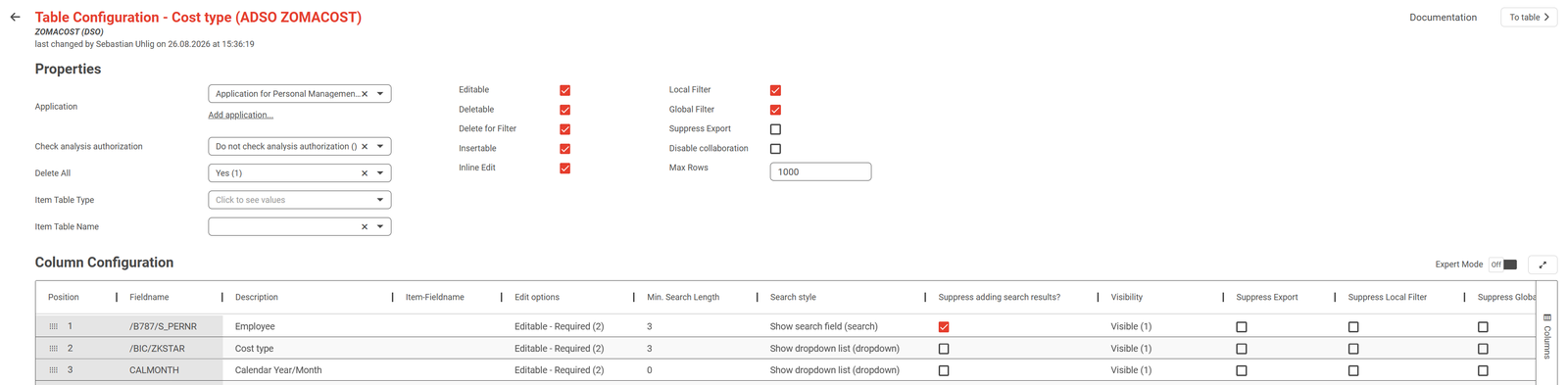
Four properties decide whether the table is usable at all, and they are worth setting before anything else:
- Application: which application the table belongs to. It is the key that authorizations are granted on, so a table in the wrong application is invisible to the people who need it.
- Editable, Insertable, Deletable: what users may do with rows. A reference table that nobody should change is a configuration with all three switched off.
- Check analysis authorization: whether row-level security applies. Leave it on for an InfoProvider that carries authorization-relevant characteristics, and see Row-level security with analysis authorizations in SAP BW.
- Max Rows: how many rows the table loads at once.
In the Column Configuration below, every field of the object appears as one row. The proposal is usually close: keys are required, the remaining fields are editable, and everything is visible. Change what the scenario needs, for example a technical field set to invisible or a derived column locked. Every property, column option and search setting is documented in Table and column configuration in NextTables for SAP BW; settings that are used less often sit behind the Expert Mode toggle at the top right.
Select Save Table when you are done.
6) Give the table a menu entry
After saving, NextTables offers the next steps, among them Create a new Menu Entry for this table, which opens the menu entry wizard with what it already knows filled in. A table without a menu entry is configured but hard to reach, so this step belongs to the setup rather than after it. Menu entries and the applications above them are covered in How to group tables into applications and menus in NextTables for SAP BW. You can reach the same wizard later under Settings → Menu Entries.
7) Open the table
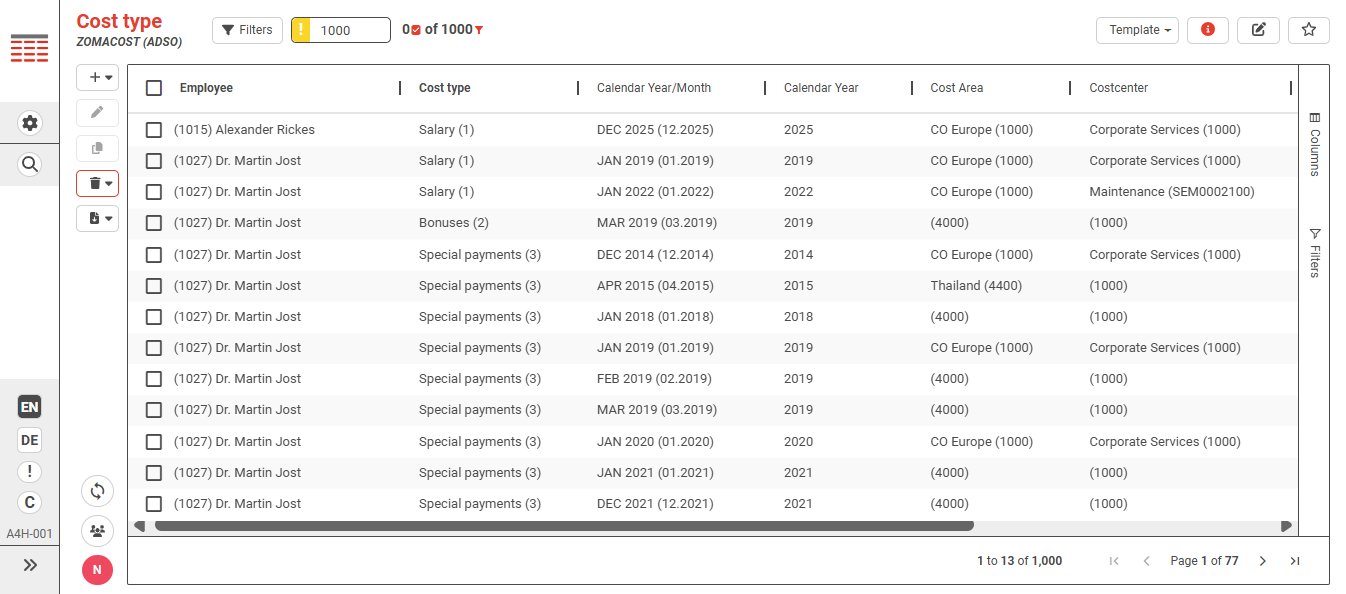
Select the table in the menu. It opens as a grid with the columns you configured, and the people you authorized can start maintaining data.
After the BW object changes
A field you add to the object appears in the Column Configuration by itself, the next time the configuration is opened. Activate the object in BW, open the table configuration, give the new column the options it needs, and save.
Saving is what records those options. Until then the column runs on its defaults, and users can already maintain it: it appears in the table and in the input mask as soon as the object is active. This is intended, because a field that someone just added to the object is usually a field someone wants to fill.
This is the step that the change tracking tutorial refers to when it adds two fields to an ADSO: How to track changes in NextTables for SAP BW.
Troubleshooting / FAQs
1. The table name search returns nothing.
Two causes cover almost every case. The Table Type does not match the object, for example a DDIC table searched under DSO. Or the object is not active in BW. The search only offers active objects of the selected type, and it matches the beginning of the technical name, so a fragment from the middle of the name finds nothing either.
2. I get "You are about to edit an existing configuration".
The object is already configured. Select Cancel, and use Search For Existing Item at the top of the screen to open the existing configuration instead. Select Ok only when changing that configuration is what you intend.
3. The table is configured, but the user cannot find it.
Either the table has no menu entry, or the user has no rights on its application. Both are worth checking in that order: the menu entry in Settings → Menu Entries, the rights on /NLY/APP in the user's role.
4. A field I added to the ADSO is missing in NextTables.
Check that the object is active in BW. The fields of an active object appear in the Column Configuration the next time it is opened, and in the table itself on their defaults. If the column is in the configuration but users cannot see it, check its Visibility.
5. Users can open the table but cannot change anything.
Check the three properties Editable, Insertable and Deletable, then the Edit options of the individual columns, then the user's activities on /NLY/TBLS. A column set to Locked stays read-only however wide the user's authorizations are.
6. Can one object have two configurations?
No. A configuration is keyed by table type and table name. Use an alias table when two groups need the same object with different columns, different settings or different authorizations.