
📝 Availability: NextTables for SAP BW, Professional and Enterprise editions. Options 1 and 2 work in the Professional edition. Option 3 requires the Enterprise edition, because it uses a BAdI.
You will learn
How to give the person editing a table the right values to choose from, starting with the option that needs no code at all. Three routes are covered, in the order you should try them: a Data Dictionary search, an InfoObject search, and finally a custom Search BAdI.
This article is for anyone configuring a table in NextTables. The third option additionally needs an ABAP developer.
💡 Start with configuration. Most value help requirements are met by the search settings on the column. NextTables already runs a fuzzy match when it searches InfoObject texts, so "I need fuzzy search" on its own is not a reason to write code. Reach for a BAdI when the values cannot come from a Data Dictionary table or an InfoObject at all, or when a result needs more context than a key and a text.
Prerequisites
- A table already configured in NextTables. Table and column configuration in NextTables for SAP BW is the full settings reference.
- For option 3 only: ABAP development access on the BW system.
The problem
Long value lists with cryptic keys are hard to work with. Finding the right employee in a large company means knowing a personnel number, and the person editing the table usually knows a name. The same is true of company codes, cost centers and organizational units: the human knows the description, the table stores the key.
Every option below closes that gap. They differ in how much context they can show and how much work they cost.
The settings all three routes share
Whichever route you pick, four settings on the column decide how the value help behaves. They are set in the column configuration and can be overridden per table in the table maintenance BAdI:
| Setting | What it does | Values |
|---|---|---|
| Search mode | Where the values come from | DDIC, IOBJ, CUSTOM |
| Search name | Which object, for example the InfoObject name | Free |
| Search style | Dropdown or search bar | DROPDOWN, SEARCH |
| Minimum characters | How much the user types before the search runs | A number, commonly 3 |
| Strict | Whether values outside the result list are refused | X or empty |
📝 Dropdown or search bar: a dropdown loads every value first and then filters locally, which is fast and forgiving on a short list and unusable on a long one. A search bar queries for the term the user typed, and may query again as they keep typing. The practical line is around 50 values.
Step-by-Step Instructions
Option 1: a Data Dictionary search
When the values live in a Data Dictionary table, point the column at that table and field. Set the search mode to DDIC and the search name to the table and field the values come from. No code, no InfoObject, and the value help follows the Data Dictionary as it changes.
Use this for check tables and any list a DDIC object already maintains.
Option 2: an InfoObject search
When the column is a characteristic, point it at the InfoObject: search mode IOBJ, search name the InfoObject. The value help then shows the master data with its texts, so the user searches on the description rather than the key.
This route already includes a fuzzy match on the InfoObject texts. Searching for Alex also finds Alexandra and Alexander, and it will find Axel too, which is what fuzzy matching means. If your requirement is only "let people search by name rather than key", you are finished here.
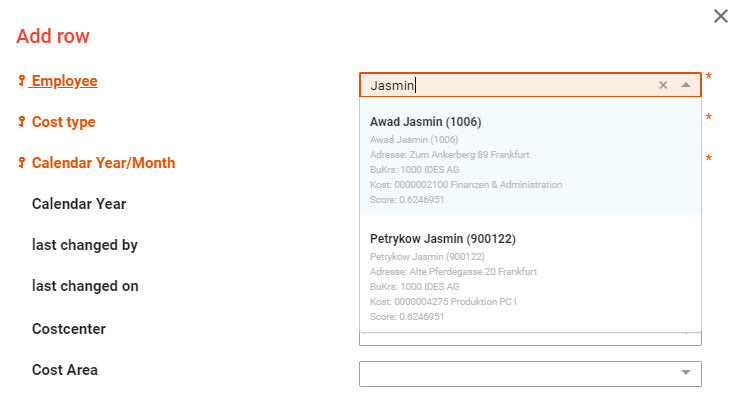
Option 3: a custom Search BAdI
Write a Search BAdI when configuration cannot get you there. The two cases that genuinely need it:
- The values are not in a DDIC table or an InfoObject. They come from a view, several joined tables, or a calculation.
- A result needs more context than a key and a text so the user can tell two near-identical entries apart. For employees, that is the organizational unit, the company code, the position and whether the record is still active, since a system usually holds many inactive personnel numbers.
A custom search also lets you weight the columns. Whether people in your organization search by first name or by surname is a question about your organization, not about the data, and the weighting is where you answer it.
The implementation has two halves, each with its own reference:
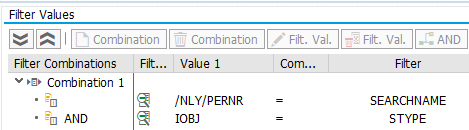
- Set the search up and adjust its metadata: the definition, the filter, and the Meta method. How to implement a Search BAdI in NextTables for SAP BW.
- Implement the search itself and format the results: The Search BAdI DO_SEARCH method in NextTables for SAP BW, which carries a complete worked example that queries a view with a fuzzy match and returns formatted results.
A short Meta method is usually all the first half needs:
METHOD /nly/if_search~set_meta_exit.

  ch_s_search_info-min_char    = '3'.
  ch_s_search_info-searchmode  = i_stype.
  ch_s_search_info-searchname  = i_searchname.
  ch_s_search_info-strict      = 'X'.
  ch_s_search_info-searchstyle = 'SEARCH'.

ENDMETHOD.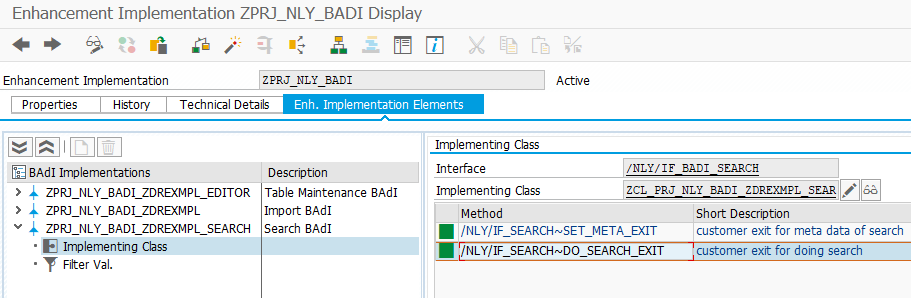
⚠️ One implementation serves every table using that InfoObject. The Search BAdI filter carries the search type and search name, not the table. That is usually what you want, but check it before you write a search that only makes sense for one table. To differ per table, set the column's search properties in that table's configuration, or override them in the table maintenance BAdI's Meta method.
How to choose
| If | Use | Edition |
|---|---|---|
| The values are in a Data Dictionary table | Option 1, search mode DDIC | Professional |
| The column is a characteristic with master data | Option 2, search mode IOBJ | Professional |
| The list is long and users search by description | Option 2. The InfoObject text search already matches fuzzily. | Professional |
| The values come from a view, a join or a calculation | Option 3, a Search BAdI | Enterprise |
| A result needs several lines of context to be decidable | Option 3, a Search BAdI | Enterprise |
Troubleshooting / FAQs
1. Do I need a BAdI to get fuzzy search?
No. NextTables already searches InfoObject texts fuzzily. A BAdI buys you control over which columns are searched and how they are weighted, and the ability to search something that is not an InfoObject at all.
2. The value help is slow, or shows only part of the list.
The column is probably set to a dropdown, which loads every value before filtering. Switch the search style to SEARCH and set a minimum character count so the query only runs once the term is selective.
3. Users type values that do not exist.
Set strict on the column. The user can then only pick from what the search returned. Leave it off where free text is genuinely wanted.
4. My custom search affects a table it should not.
The Search BAdI filter matches the search type and name, not the table, so every table using that InfoObject gets it. Override the search properties for that one table in the table maintenance Meta method, or use a referencing InfoObject.
5. The user picks a result and the wrong value is stored.
In a custom search, TITLE_KEY is what gets written into the cell, not the description. Put the technical key there.