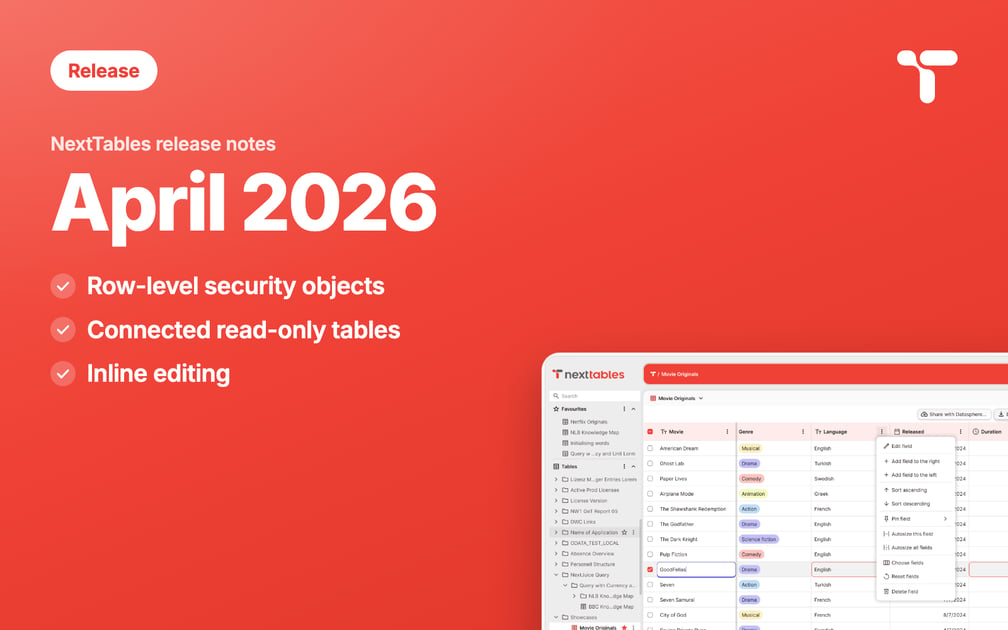
This release is about control. Row-level security moves from a wish list into the admin area, existing tables from SAP Datasphere can be connected and read where they already live, and editing a cell now works the way people expect from a spreadsheet. Everything below is live for every NextTables tenant.

New
Row-level security objects
Row-level security objects (RLSO) define which rows a user may read and write, depending on who they are. You create them once in the admin area and enforce them per table by mapping them in the table settings. The rule is respected everywhere data moves: viewing, adding, editing, uploading, and downloading.
The setup, step by step: Create and use row-level security.
Connect existing tables, read-only
Existing tables and SQL views can be connected to NextTables and read in place. They appear in the grid via the sidebar, and they serve as the base for master data objects and for Row Level Security Objects. Connected tables are read-only in this release. Write access for connected tables arrived with the August 2026 release, under ‘Tables written by other systems’.
How to connect one from SAP Datasphere: Connect an existing table from SAP Datasphere.
Inline editing
Click a cell, or press Enter, and edit in place. In number and decimal cells you start typing straight away, as in Excel.
Table settings
The business name and the technical name of a table (the database table name) can now be renamed independently of each other.
Improved
- Uploading a file with more than 20,000 rows now completes reliably.
Fixed
- Users with certain authorizations could not see an empty folder. They can now.
- Minor stability and usability fixes across the application.
Some improvements need a page refresh to take effect.
What was next, as of April 2026
At the time of this release the team was working on global view filters, a form editor, further file upload improvements and a transport mechanism. Global view filters shipped in June 2026 and the form editor in August 2026; both have their own release notes on this page.